


URL QR Code Generator
URL QR codes let you share your website, social media profiles, or any online content quickly and easily.
Transform long URLs into scannable QR codes for easy access on printed materials or any physical medium. Create a QR code from your link and enable your audience to reach your content instantly.
Create Dynamic URL QR Codes
URL QR codes have become one of the most popular ways to share web pages and app links quickly and conveniently. Thanks to Qrcodeg.com‘s advanced infrastructure, users can create dynamic QR codes effortlessly.
The biggest advantage of these QR codes is eliminating the need to manually type long and complex URLs. Simply scan a QR code to access the relevant web page instantly. Moreover, dynamic QR codes allow you to update link content whenever needed. This enhances user experience and keeps information always current.
URL QR codes serve a wide range of users—from businesses to individuals, educational institutions to organizations. Businesses can promote campaigns and showcase products. Individuals can share personal websites or social media profiles. Educational institutions can provide students with easy access to digital resources.
In short, URL QR codes make link sharing fast, reliable, and user-friendly. They have become an indispensable tool for digital communication.
To create Linktree-style multi-link QR codes, please visit our Social Media and Multi-Link QR Code page.
What is a URL QR Code?
A URL QR code is a powerful tool that reshapes how businesses and individuals interact in the digital world. It directs users straight to a company’s website, campaign pages, or social media accounts. This boosts brand awareness and customer engagement.
Businesses can easily use these QR codes on printed advertising materials, product packaging, event posters, and business cards. Users scan these codes with their smartphones to quickly access company information, explore new products, or participate in social media campaigns.
Beyond corporate use, URL QR codes are highly functional for individuals too. Digital content like personal projects, portfolios, and social media profiles can be shared easily via QR codes. They’re especially useful on resumes, personal business cards, or event invitations. They provide quick access to digital identity.
Suitable for both corporate and individual use, URL QR codes create a seamless bridge between the digital and physical worlds. Their simple, fast, and accessible nature makes this technology increasingly popular.
URL to QR Code: Various Use Cases
URL QR codes can be used for various purposes by leveraging modern technology. Here are some common use cases:
1. Website Redirection
Direct potential customers or contacts straight to your company website or specific web page. Additionally, provide quick access to content like product information, contact details, or special promotions.
2. Social Media Links
Businesses or individuals can use QR codes to direct their audience to social media accounts. This is an effective method for increasing social media followers and encouraging engagement.
3. Events and Education Materials
Used for event posters, seminars, or educational programs. Direct participants to event schedules, registration pages, or educational content.
4. Restaurant Menus
Restaurants can use QR codes to provide customers with digital menu access. This reduces the need for printed menus and makes menu updates easier.
5. Location Sharing
QR codes can direct users to location-based services, making it easy to find an event or business location.
6. Personal Use of URL QR Codes
Individuals can also use QR codes to promote personal websites, portfolios, or social media profiles.
7. Education and Learning Materials
In education, QR codes provide students with quick access to course materials, online resources, or educational videos.
8. Google Review Links
Google review links are long by nature and impossible to type manually. QR codes provide easy access to these links. Customers can leave reviews easily before leaving your business.
Create Your URL QR Code
Creating dynamic QR codes for website links and social media profiles is easy. Create your QR code now or contact us for detailed information.
Benefits of URL QR Codes
1. Editable Content
Unlike static QR codes, you can change the URL linked to dynamic QR codes without creating a new code. For example, redirect your YouTube link QR code to your Instagram profile or website anytime. People who scan your distributed QR codes will be directed to your new link without needing to replace the codes.
2. Tracking and Analytics
Dynamic QR codes let you review data like scan count, scan locations, and scan times. This provides detailed information about customers, potential customers, and target audiences.
3. Error Correction
Even if part of your dynamic QR code is damaged or partially covered, advanced error correction algorithms keep it working and directing to the specified address.
4. Long-Term Use and Reusability
Since dynamic QR code content can be changed, the same QR code can be used for multiple different campaigns at different times for different purposes.
5. Integration with Other Services
Dynamic QR codes can be integrated with different software or systems.
6. User Experience Control
Since you control where users are directed, you can always ensure they access an optimized page.
7. Print and Distribution Cost Advantage
Since website links can be changed without changing the QR code, there’s no need for reprinting and redistribution when links change.
📌 Link Page QR Codes for Business
Link page QR codes bridge the physical and digital worlds, offering businesses multifaceted benefits. Below are effective real-world use cases:
🔹 Increase Brand Awareness
Add customized link page QR codes to product packaging, billboards, and business cards to boost your brand’s digital presence. Drive traffic directly from physical materials to your digital channels.
🔹 Expand Social Media Reach
Use logo-embedded QR codes to direct visitors to your website and social media accounts, making customer acquisition easier. Integrate these codes into both online and print campaigns.
🔹 Encourage Customer Engagement
Restaurants can add link page QR codes to menus, making it easy for customers to reach social media accounts, share photos, leave reviews, and place online orders.
🔹 Welcome New Employees Digitally
Place QR codes in welcome emails or presentations for new employees. Provide access to company policies, training documents, and team information. Create an effective and modern digital onboarding process.
What Can URL QR Codes Be Used For?
How to Create a Location QR Code
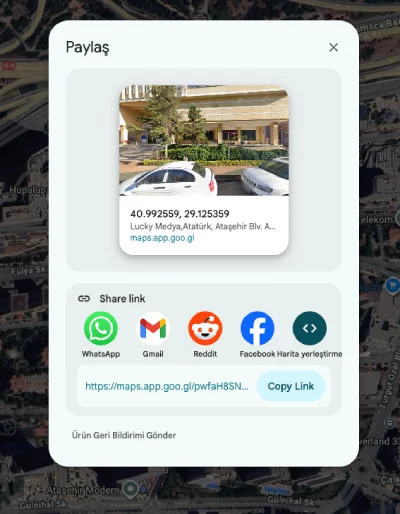
URL QR codes can be used as location QR codes. Creating a location QR code is very easy. Here’s how:
- Go to Google Maps.
- Navigate to the location you want your QR code to display—either from the map or by typing in the search field.
- Make sure you’re at the correct location. Right-click on the building and select Share this location. Click the copy link button in the popup window.
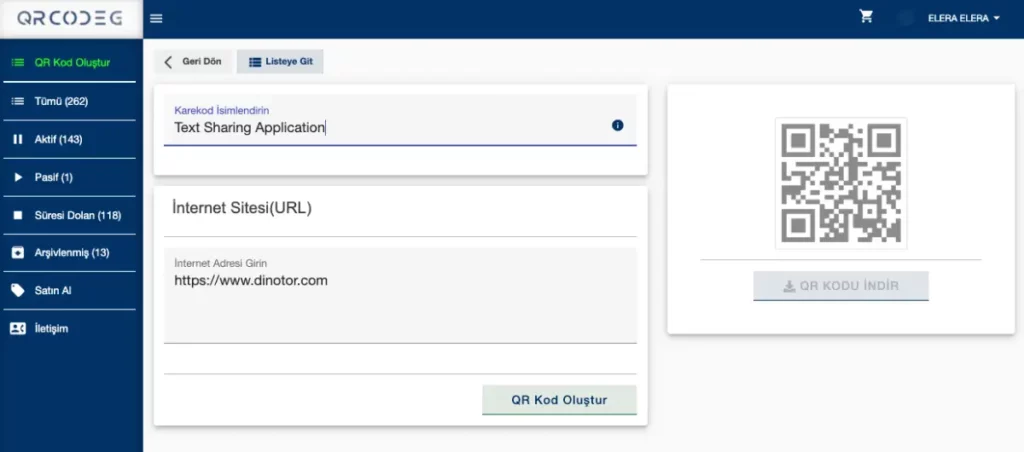
- Go to https://app.qrcodeg.com. Sign up if you’re not a member, then click the Create QR Code button at the top of the dashboard.
- On the page that opens, click the Dynamic Website (URL) button.
- Give your QR code a name (this is only visible to you).
- Paste the link you copied from Google Maps into the Enter Internet Address field.
That’s it!
Did your address change? Don’t worry. With Qrcodeg dynamic QR codes, you can change your address as many times as you want. Your QR code stays the same, so if you’ve printed it anywhere, no need to reprint.
Create QR Codes for YouTube Videos
URL QR codes provide easy access to corporate or personal videos. With Qrcodeg Dynamic URL QR codes, even if your video is taken down by YouTube, you can create a new video and simply change the link. This saves printing costs and avoids access issues. Changing your link doesn’t change your QR code—you can keep using it safely.
To create a YouTube video QR code, paste your video link into the Website (URL) field on the Qrcodeg URL QR Code creation page. Make sure Internet Link is selected in the Link Type field, then create your QR code. Now anyone who scans will instantly start viewing your video.
How to Create an Email QR Code
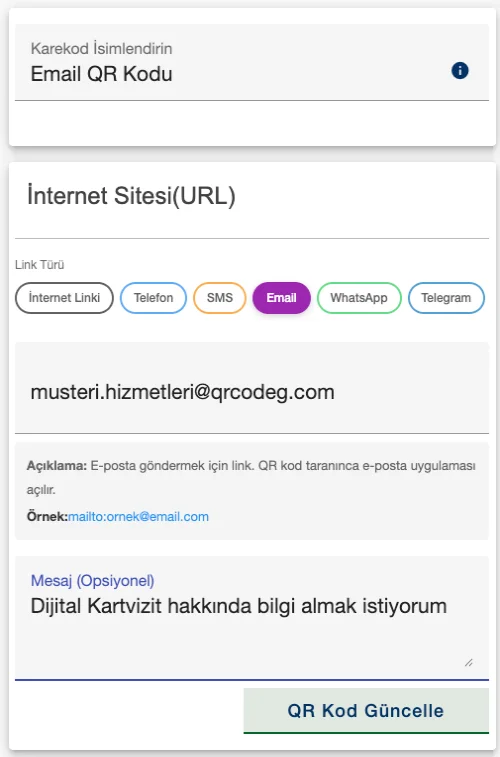
Want to receive emails directly without having users fill out contact forms? With email QR codes, users can open their mail app with a ready draft—no need to type or copy your address. Use QR codes on your website, catalogs, trade show booth, product packaging, or campaign visuals. Since recipient address, subject line, and optionally the message body are predefined, you can collect recurring emails like quote requests, appointment requests, customer support, or campaign/contest applications in a uniform and organized way. You can easily change all these fields when needed.
To create an email QR code, select Email as the Link Type on the Qrcodeg URL QR Code creation page. Then enter your recipient email address, desired subject line, and if applicable, ready email text in the fields that appear.
When users scan the QR code, their device’s default mail app opens with an email draft pre-filled with your address, subject, and message (if specified). Sending you an email takes just seconds.
How to Create a Phone Call QR Code
Did you know you can enable phone calls by scanning a QR code? Publish your QR code on your website, brochure, or advertisements. Let potential customers call you easily by scanning the QR code—no need to dial numbers. Update the number to be called anytime.
To create a Phone Call QR code, click the Phone button in the Link Type field on the Qrcodeg URL QR Code creation page. Enter your phone number with the country code in the link field below. Example: 905333332211
Click Create QR Code. Now users can scan your QR code and easily call you without dialing.
How to Create a WhatsApp QR Code
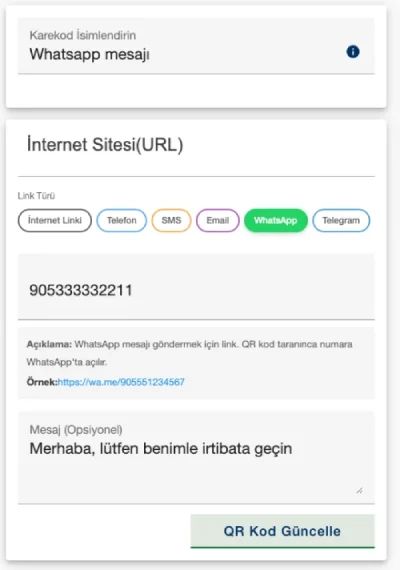
Did you know people can message you on WhatsApp by scanning a QR code? Use your QR code on your website, brochures, posters, or product packaging. Let potential customers open a WhatsApp chat window with one scan—no need to save your number. Optionally add a predefined message to easily guide what customers will write. Update the number or ready message anytime.
To create a WhatsApp Message QR code, click the WhatsApp button in the Link Type field on the Qrcodeg URL QR Code creation page. Enter your phone number with country code in the link field below. If you want a fixed message sent to you, type it in the Message field at the bottom.
Users who scan the QR code can contact you automatically on WhatsApp without saving your number to their contacts.
How to Create Telegram Message/Channel QR Code
Direct users straight to your Telegram account, channel, or group by scanning a QR code. Use your QR code on your website, brochures, posters, or digital ads. Let potential followers reach you on Telegram with one scan—no need to search usernames. Easily increase both one-on-one communication and channel/group subscriptions. Update the Telegram address your QR code directs to anytime.
To create a Telegram QR code, click the Telegram button in the Link Type field on the Qrcodeg URL QR Code creation page. Enter your Telegram profile, channel, or group link in the link field below.
Example profile/channel link:https://t.me/qrcodeg
Example invite link (group/channel):https://t.me/+AbCdEfGh1234
How to Create an SMS QR Code
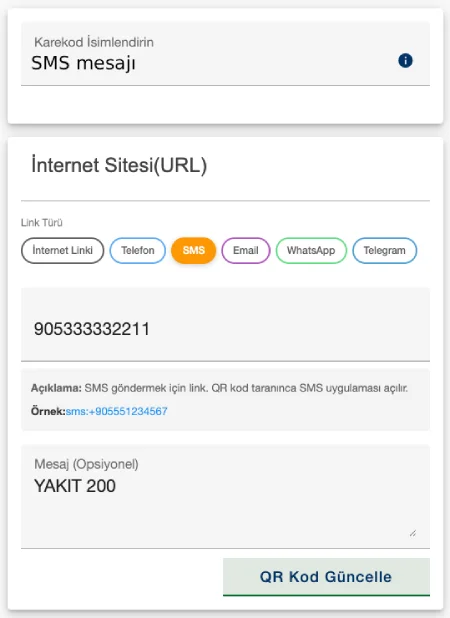
You can simplify SMS sending to just one QR code scan. With an SMS QR code on your website, business cards, brochures, or posters, users don’t have to type numbers, add to contacts, or copy text. They’ll see your number and optionally a ready message on their phone’s SMS screen. This makes reaching you easier and lets you automate standard requests like price quotes, appointment requests, support requests, or campaign/contest participation. Collect recurring SMS in one template. Update the number and default message anytime.
To create an SMS QR code, click the SMS option in the Link Type field on the Qrcodeg URL QR Code creation page. Enter your phone number with country code and optionally the message you want to appear automatically in the SMS field.
When users scan the QR code, their phone opens an SMS creation screen where they can message you directly, even if your number isn’t saved in contacts.
How to Create a Google Review QR Code
URL QR codes can be used as Google review QR codes. Creating a Google review QR code is very easy. Here’s how:
- Go to https://business.google.com and log into your Google Business Profile.
- Click “Read reviews” then “Get more reviews.”
- You’ll see your review link in the popup window. Click the “Copy” button to copy the link.
- Go to https://app.qrcodeg.com. Sign up if you’re not a member, then click the Create QR Code button at the top of the dashboard.
- On the page that opens, click the Dynamic Website (URL) button.
- Give your QR code a name (this is only visible to you).
- Make sure the Internet link button is selected.
- Paste the review link you copied from your Google Business Profile into the Enter Internet Address field.
That’s it.
Did your link change? Don’t worry. With Qrcodeg dynamic QR codes, you can change your link as many times as you want. Your QR code stays the same, so if you’ve printed it anywhere, no need to reprint. Customers can easily leave reviews for your business by scanning the QR code.
Frequently Asked Questions

Is an intermediate page shown when my QR code is scanned?
No. When the QR code is scanned, the link you set is displayed directly on the scanning device.
Are dynamic URL QR codes paid?
Yes, they are charged annually per QR code.
Is there a scan limit?
There is no scan limit on URL QR codes.
Is renewal mandatory when my membership ends?
No, if you do not make a payment, your QR code becomes inactive.
What is the 14-day trial mode?
It is a free service offered for creating and testing a QR code for trial purposes before purchasing.
Can I keep using the URL QR code I created in trial mode after making the payment?
Yes, you can continue using the same code.
Is there special pricing for bulk purchases?
Yes, you can request special pricing by contacting us through our contact details.
Will my QR code change when I make a change?
No. Your URL QR code does not change when the link changes.
Can I add more than one link to a URL QR code?
No, only a single link can be created. To create multiple links, you can check the Social Media and Multi-Link QR Code creation page.
Create QR Codes for Social Media Profiles
Create QR codes for your social media profiles or posts. Direct scanners to any link you want, anytime. Change your link unlimited times. Paste your social media link into the Website (URL) field on the Qrcodeg URL QR Code creation page. Make sure Internet Link is selected in the Link Type field, then create your QR code. Anyone who scans will be automatically directed to your social media profile or post.