


◆ For business cards, email signatures and badges
Business Card QR Code Generator
Share your contact details in one scan and let people save you to their contacts with a single tap. Even if your phone number, job title or name changes, the printed QR code stays the same.
- One-tap save to phone contacts
- Details change, the printed QR code stays the same
- Apple Wallet support and scan reports
Create Business Card QR Code →How does it work?
14-day free trial · No credit card required · Pricing
What Is a Business Card QR Code?
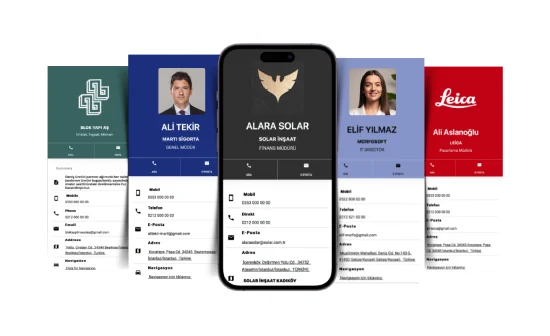
A business card QR code links your name, job title, phone numbers, email, address and website to a QR code that anyone can scan with a phone camera. The person scanning sees your digital business card without installing an app, and can call you, email you, get directions or save your details to their contacts with one tap.
Qrcodeg’s business card QR code is dynamic: your details are stored in the cloud and the QR code only contains your own short link. That keeps the code simple enough to fit in the corner of a business card, and when your details change you just update the record in your dashboard — no need to throw away printed cards. For a simple record that will never change, you can also create a free static vCard QR code.
How to Create a Business Card QR Code in 3 Steps
Your business card QR code is ready in a few minutes. No technical skills needed:
1
Enter your details
Add your name, job title, company, phone numbers, email, address, website and social media accounts. The phone preview shows exactly how your card will look.
2
Match your brand
Upload your photo or logo and pick a solid color or a gradient. Choose the language your card is displayed in.
3
Download and print
Add colors and a logo to your QR code and download it as PNG or SVG. Put it on your business card, email signature, badge or brochure. You can also share your card as a kod.kim short link on WhatsApp or in your email signature. On WhatsApp, the link shows your name, job title and photo.
Create your business card QR code now → The first 14 days are free, and the QR code you create during the trial keeps working after you purchase.
What Can Your QR Code Business Card Include?
A printed card has limited space; a QR code business card doesn’t. The page that opens on the scanner’s phone can show:
Name, Title and Company
Your name, company and job title with your photo or logo, plus one-tap “Call” and “Email” buttons at the top.
All Your Phone Numbers
Mobile, landline, direct line and fax numbers, plus a WhatsApp button that opens a chat in one tap.
Multiple Addresses
Add head office, branch, store or factory addresses with their own phone numbers; each opens in maps, and your location gets turn-by-turn directions.
Websites and Social Media
Several web addresses and your social accounts such as LinkedIn, Instagram and X on one page.
Bank and Tax Details
Add your IBAN and tax details; the person scanning can share or copy them with one button.
Add to Contacts
The “Add to Contacts” button saves all your details as a contact on iPhone and Android.
Static vCard QR or Dynamic Business Card QR?
There are two kinds of QR codes you can print on a business card. A static (vCard) QR code writes your details directly into the code; a dynamic business card QR code keeps them in the cloud so you can always change them:
| Feature | Qrcodeg dynamic business card QR | Static vCard QR |
|---|---|---|
| Changing your details | ✓ Update everything, even your name — same QR | ✗ One changed digit means reprinting |
| QR code size | ✓ Short link: a simple code that prints small | ✗ More details make the code denser and larger |
| Multiple addresses and websites | ✓ Unlimited addresses, web links, social media | ✗ Limited by the code’s capacity |
| Scan reports | ✓ By date, city and device | ✗ No idea how many people scanned |
| Short link | ✓ Share a kod.kim/… link on WhatsApp and email | ✗ None, details live only inside the QR code |
| Apple Wallet | ✓ Add your card to iPhone Wallet | ✗ No |
| Price | Yearly, no auto-renewal | ✓ Free |
If your details will never change, a free static vCard QR code may be enough. If you’ll use your cards for a long time, hand them out to a team or want to see scans, a dynamic business card QR code is the better choice.
The Qrcodeg Difference
No Auto-Renewal
Unlike most subscription services, we don’t store your card details and we don’t auto-renew. We email you 7 days before expiry; if you want to renew, you make the payment yourself.
Real Human Support
Have a question? Contact us and our team will help you from setup to printing.
Cards in 8 Languages
Your card’s labels can be shown in English, Spanish, French, German, Dutch, Russian, Arabic or Turkish — ideal for international contacts.
Add Your Business Card to Apple Wallet
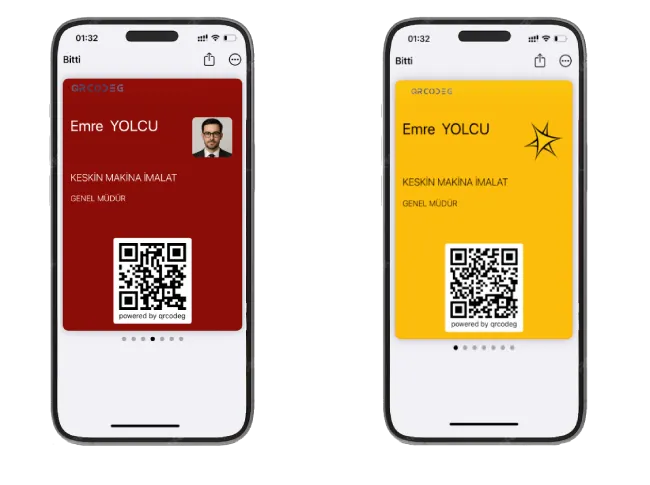
You can add your business card QR code to the Wallet app on your iPhone. When you don’t have a printed card with you, open Wallet and show the QR code; the other person scans it and saves you to their contacts.
- The Wallet card shows your name, company, job title, your photo or logo and your QR code.
- The card color matches the color you chose for your digital business card.
- The QR code in Wallet always opens your up-to-date business card page. If your name or title on the card changes, simply add the card again.
Add to Apple Wallet in 3 Steps
1
Create your business card QR code
Create and save your business card QR code in the dashboard.
2
Download the Wallet card
In “My QR Codes”, click the “Apple Wallet” button next to your business card.
3
Open it on your iPhone
Open the downloaded file on your iPhone and tap “Add”. If you downloaded it on a computer, just email the file to yourself.
For a detailed guide, see our add a business card to Apple Wallet page.
Business Card QR Codes for Teams and Companies
With company business cards, the real savings come when details change. Dynamic business card QR codes make your team’s cards easy to manage:
Same QR When Staff Change
When a sales rep leaves, update the record with the new employee’s details. Customers scanning the old card reach the new person directly — no lost leads.
Consistent Branding
Use the same logo and brand colors on every team member’s card, and add your logo to the center of the QR code too.
Stay Organized with Folders
Group cards by department, branch or dealer in folders.
Scan Reports
See how many scans each card, trade show or campaign brings in with scan analytics.
Publish or Pause
Deactivate a card whenever you like and publish it again when needed.
Less Printing
No reprints when a phone number, title or address changes — saving both money and paper.
Where to Use a Business Card QR Code
A QR code isn’t just for paper business cards — it works anywhere you want to share your contact details:
Printed Business Cards
On the front or back of your card: one scan, saved to contacts.
NFC and Digital Cards
On an NFC business card, as a backup for phones without NFC.
Email Signatures
In your Outlook or Gmail signature, for everyone you email.
Online Meetings
In your Zoom or Teams background so attendees can scan it.
Phone Gallery
Let people scan it from your screen when you have no card with you.
Trade Shows and Events
On badges, booths and promotional materials.
Real Estate Signs
On for-sale and for-rent signs to reach the agent.
Vehicle Wraps
On service and company vehicles: contact details in one scan.
Store and Office Entrances
On doors, windows and counters.
Packaging and Labels
Reach the dealer, sales or service contact.
Brochures and Catalogs
Your sales rep on proposals and catalogs.
Billboards and Posters
Interested people can save you for later.
Tips for Printing a QR Code on Your Business Card
A few simple rules make sure your QR code scans on the first try with any phone:
- Size: We recommend at least 2 × 2 cm (0.8 × 0.8 in) on a business card. Dynamic codes are simple, so smaller sizes can work too — but test on several phones.
- Contrast: Use a dark code on a light background; don’t invert the colors, as light-colored codes won’t scan on some phones.
- Leave a margin: Keep a clear border around the code with no text or lines.
- Add a short call to action: One line such as “Scan to save my contact” increases scans.
- Choose a matte finish: Glossy lamination can reflect light and make scanning harder.
- Test before printing: Scan the QR code with several different phones before sending it to the printer.
Want a card you can tap instead of scan? See our digital business card page.
What our business card users say
“The Apple Wallet feature is fantastic. Our team and clients can save digital business cards directly to their phones, always accessible offline.”
“The best local company serving Türkiye, and you can reach them by phone too. We have been actively using their digital business cards for 3 years.”
Frequently Asked Questions
Is a business card QR code free?
You can try your business card QR code free for 14 days — no credit card required. After the trial it is billed yearly per QR code, and you can buy up to 10 years. See current prices in the price list. If your details will never change, a static vCard QR code is free.
Can I change my business card details later?
Yes. You can change all your details, including your name, as often as you like during your QR code’s term, at no extra cost. The QR code doesn’t change; printed cards show your updated details.
Can people save me to their contacts?
Yes. The “Add to Contacts” button on your card page saves your details as a contact on iPhone and Android. The person scanning doesn’t need to install an app.
Can I add a logo or photo to my card?
Yes. Your photo or logo appears on your card page, and you can choose a solid color or gradient background. You can also add a logo to the center of the QR code.
Can I add several phone numbers, addresses and websites?
Yes. Besides mobile, landline, direct line and fax numbers, you can add several addresses (each with its own phone number) and several web addresses.
Can I add my social media accounts and location?
Yes. You can add popular social media accounts and your WhatsApp number. When you add your location, the person scanning gets directions with one tap.
Which languages can my card be shown in?
The labels on your card page can be shown in English, Spanish, French, German, Dutch, Russian, Arabic or Turkish. You choose the language when creating the card and can change it at any time.
Can I add my business card to Apple Wallet?
Yes. Use the “Apple Wallet” button in “My QR Codes” to download your card and add it to the Wallet app on your iPhone. Details are on our Apple Wallet business card page.
Can I use the same QR code on an NFC business card?
Yes. When you order a digital (NFC) business card, you can keep using your existing business card QR code.
Can I see how many people scanned it?
Yes. The scan report in your dashboard shows each QR code’s scan count, date, city and device (type, operating system and browser). There is no limit on the number of scans.
Is there auto-renewal?
No. Your card details are not stored and there is no auto-renewal. We email you 7 days before expiry; if you don’t renew, your QR code becomes inactive.
Can I keep using the QR code I created during the trial after I buy?
Yes. After payment you keep using the same QR code, so there’s no need to reprint your business cards.
Can I buy business card QR codes for my whole team?
Yes. Volume discounts are applied automatically in the cart as the quantity increases, and you can organize cards in folders. For business needs, contact us.