


APPLE WALLET INTEGRATION
Add Your Business Card to Apple Wallet
Turn your business card QR code into an Apple Wallet pass in one click. It’s always ready to share on your iPhone and Apple Watch, and when your phone number or website changes, your QR code shows the latest details without a reprint.
✓ iPhone, iPad, Mac and Apple Watch · ✓ No credit card required · ✓ Included with your business card
WHAT IS APPLE WALLET?
Your business card, right next to your tickets
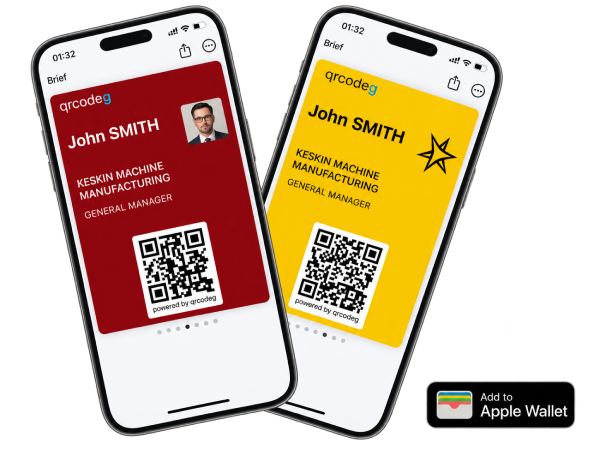
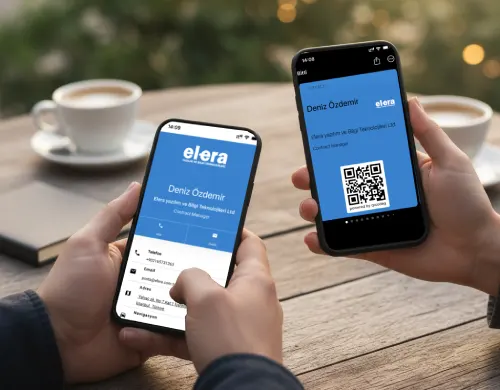
Apple Wallet is Apple’s built-in app on iPhone and Apple Watch for digital passes like boarding passes and event tickets. Qrcodeg packages your dynamic business card QR code as a .pkpass file, Apple’s official format: you open Wallet, the other person scans the QR code, and they reach all your details instantly.
Front
Your name, title, company, photo or logo, and a large QR code. You pick the background color.
Back
Your profile link, bank details and tax information. Flip the card when someone asks for invoicing or payment details.
WHY APPLE WALLET?
Where paper business cards fall short
Paper cards get lost, wear out and go in the bin when your details change. A card shared as a link gets buried in chats. The card in your Wallet is ready the moment you take out your phone.
One-Tap Setup
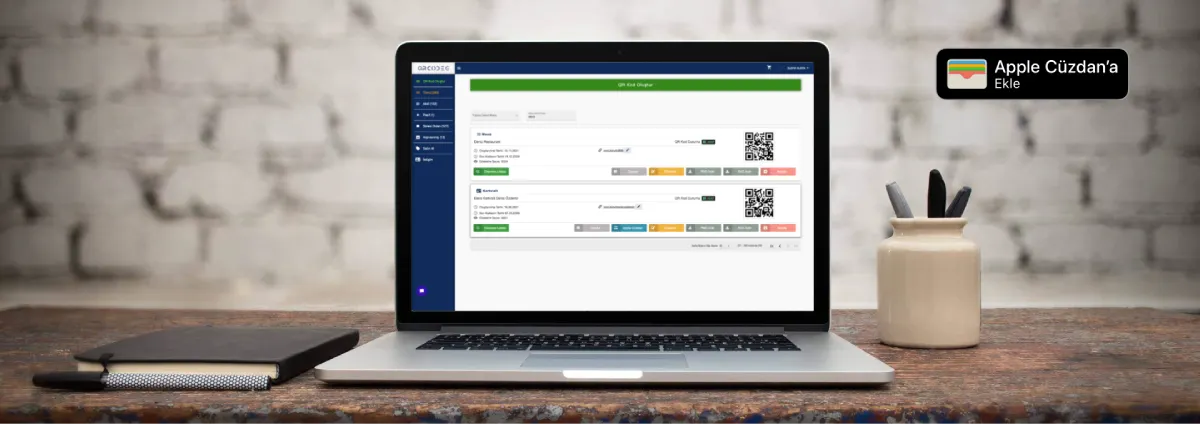
Click “Add to Apple Wallet” in your dashboard and your card is ready. Works on iPhone, iPad, Apple Watch and Mac.
Works Offline
The card is stored on your device. Show your QR code at trade shows, on planes or out of coverage, no internet needed.
Ready on Apple Watch
Cards added on iPhone appear on your watch automatically. Share from your wrist while your phone stays in your pocket.
Always-Current QR
The business card page your QR code opens updates instantly from the dashboard, so your card never goes out of date.
STEP BY STEP
How to Add Your Business Card to Apple Wallet
Create your business card
Create your business card QR code on Qrcodeg and add your name, title, contact details and logo.
Click “Add to Apple Wallet”
Click the button in your QR code list and your card is packaged as a .pkpass file.
Add it to Wallet
Open the file on your iPhone and tap “Add”. The card also appears on your paired Apple Watch automatically.
Three ways to add it
From your iPhone
Open your dashboard in Safari, tap “Add to Apple Wallet” and tap “Add” in the preview.
From your Mac
Double-click the file to add it; the card syncs to your iPhone via iCloud, then to your Apple Watch.
By email or AirDrop
Email the file or AirDrop it; when the recipient taps it on their iPhone, the card is added automatically.
APPLE WATCH
Your business card on your wrist
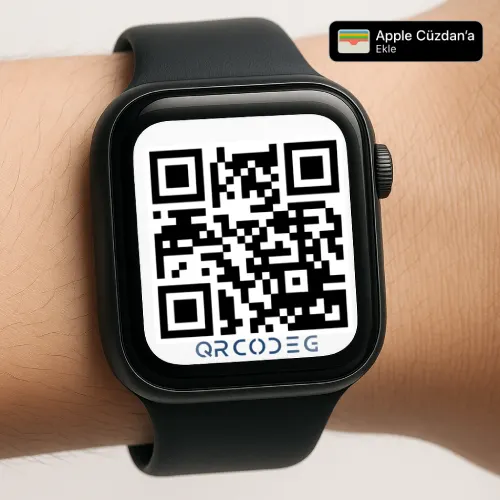
The business card you add on your iPhone syncs to your paired Apple Watch with no extra steps. Double-press the side button or open Wallet from the app list, choose your card, and your QR code appears on screen for the other person to scan straight from your wrist.
It’s the easiest way to share when your hands are full, your phone is in your bag or you’re working a busy trade show booth.
THE POWER BEHIND IT
Dynamic QR Code: What Updates and What Doesn’t
Because the QR code on your card is dynamic, the image never changes while the page it opens can be updated from the dashboard. What’s printed on the front of the card lives inside the pass file.
Updates instantly
- Phone number and email
- Website and social media accounts
- WhatsApp, location and other links
Anyone who has scanned your card or added it to their Wallet sees the latest details when they scan the QR code.
Re-add the pass
- Name and title on the front of the card
- Profile photo or logo
When you change these, simply download the new pass from the dashboard and add it to Wallet again.
See how many people scanned your code, from which city and when, with QR scan analytics, and measure the return on your networking.
FOR TEAMS
Apple Wallet business cards for your whole team
On a team of 10, 50 or 100 people, every title change means another print run. With a Qrcodeg business account, a single admin creates and manages every employee’s business card QR code.
- Distribution: The admin downloads each employee’s .pkpass file from the dashboard and emails it; employees tap the attachment to add their card.
- Contact changes: Phone, email and website are updated in the dashboard; the page the QR code opens refreshes for everyone instantly.
- Title changes: When the name, title or photo on the front changes, the new pass is sent to that employee again.
- Departing employees: Their business card QR code is deactivated in the dashboard and stops working.
NFC DIGITAL BUSINESS CARD
An NFC card in your wallet, a Wallet pass on your phone
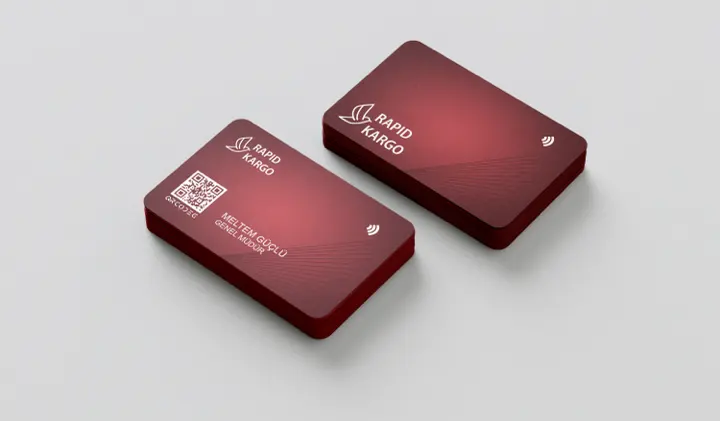
The Apple Wallet feature is available to customers with a business card QR code or an NFC digital business card. Custom-printed NFC cards are a separate product: when someone holds their phone near your card, your business card page opens, with no QR scan needed.
COMPARISON
Apple Wallet Business Cards: Qrcodeg vs. Alternatives
Qrcodeg isn’t the only way to put a business card in Apple Wallet. QR code platforms and general-purpose pass apps offer it too; the real differences are in the payment model, the page behind the pass and support.
| Qrcodeg | QRCodeChimp | QR TIGER | Pass2U Wallet | |
|---|---|---|---|---|
| Business card in Apple Wallet | ✓ | ✓ | ✓ | General-purpose pass, details entered manually |
| Pass QR opens an updatable business card page | ✓ | ✓ | ✓ | — |
| Scan analytics | ✓ | ✓ | ✓ | — |
| Payment model | Annual payment, no mandatory renewal | Monthly / annual subscription | Monthly subscription, from $7/mo | One-time Pro: $2.99 |
| Free start | 14-day free trial | Free plan with 1 business card | 3 dynamic QR codes, 500 scans, QR TIGER branding | Free version with ads |
QRCodeChimp and QR TIGER also offer Google Wallet passes; Google Wallet support is coming to Qrcodeg soon.
No mandatory renewal
You pay annually for your business card; renewal at the end of the term is optional, and you get an email reminder before it expires.
Direct email support
Questions about setup or team rollout go straight to the Qrcodeg team at [email protected].
No separate pass design
The pass picks up the colors you chose for your business card automatically, so there’s nothing extra to design.
Built for teams
Admins email passes to the whole team, and the back of the card can hold bank and tax details.
FAQ
Frequently Asked Questions
How do I add a business card to Apple Wallet?
In your Qrcodeg dashboard, click “Add to Apple Wallet” next to your business card QR code and download the .pkpass file. Tap the file on your iPhone and Apple Wallet opens; tap “Add” and you’re done. On a Mac, double-click the file to add it, and it syncs to your iPhone via iCloud. You can also send the file to your phone by email or AirDrop.
What is Apple Wallet and is it free?
Apple Wallet is a free Apple app that comes pre-installed on iPhone, iPad and Apple Watch. It stores digital passes such as boarding passes, tickets and membership cards. The terms for a business card you add to Wallet depend on the platform that provides it.
Do I pay extra for the Apple Wallet feature?
No. Adding to Apple Wallet is included with business card QR code and NFC digital business card packages. Qrcodeg has no auto-renewal and doesn’t store your card details; you get an email reminder before your business card expires.
If my details change, do I need to re-add the card to Wallet?
Not for your business card page: when you update your phone, email or website in the dashboard, the page your QR code opens changes instantly. The name, title and photo on the front of the pass are stored inside the pass file, so if you change those, download the new pass from the dashboard and add it to Wallet again.
Can I send my card via WhatsApp?
No. A .pkpass file sent via WhatsApp can’t be added to Wallet. Send your card as an email attachment or via AirDrop instead; when the recipient taps the file on their iPhone, the card is added automatically.
Does the Apple Wallet business card work on Android?
Apple Wallet is only available on iPhone, iPad, Apple Watch and Mac, so the pass itself can’t be added on Android. The QR code on the card is universal, though: anyone, including Android users, can scan it to open your business card page. NFC digital business cards also work on both platforms.
Can I show my business card on Apple Watch?
Yes. The business card you add on your iPhone syncs automatically to your paired Apple Watch. Open Wallet on the watch and select your card; your QR code appears on screen and the other person can scan it straight from your wrist.
What is a .pkpass file?
.pkpass is Apple’s official file format for Wallet passes; boarding passes and event tickets use it too. Apple devices recognize the file automatically and add it to Wallet with a single tap.
Does my business card work offline?
Yes. Once added to Apple Wallet, the card is stored on your device, so you don’t need an internet connection to show your QR code. The other person only needs a connection on their own device to open your business card page.
Can I distribute cards to all employees from one account?
Yes. With a business account, a single admin creates and manages every employee’s business card QR code. The admin downloads each employee’s .pkpass file from the dashboard and emails it; employees tap the attachment to add their card to Wallet. Contact details are updated from the dashboard; if a name, title or photo changes, the new pass is sent to that employee again.
How do I deactivate my business card?
When you deactivate your business card QR code in the dashboard, the QR code stops working. To remove the card from Wallet, open it in Wallet and delete it from the card details.
How is it different from wallet apps like Pass2U?
Apps like Pass2U create general-purpose Wallet passes by scanning a barcode or typing in details; the content of the pass is fixed. With Qrcodeg, the pass carries a QR code linked to your dynamic business card page, which you update from the dashboard, and it reports how many times the code is scanned.
How is it different from QRCodeChimp and QR TIGER?
These platforms also offer Apple Wallet business cards and run on monthly or annual subscriptions. With Qrcodeg, you pay annually for your business card and renewal is never mandatory; you can buy a single business card and reach the team directly by email.
Your business card, always in your pocket
Try it free for 14 days, no credit card required. Create your dynamic business card QR code in minutes and add it to Apple Wallet in one tap. It never gets creased, stained or lost.