


Add Business Card to Apple Wallet: The Easiest Way to Carry Your Digital Card on iPhone
How do you add a business card to Apple Wallet? In this guide, we’ll cover everything about Apple Wallet and digital business cards.
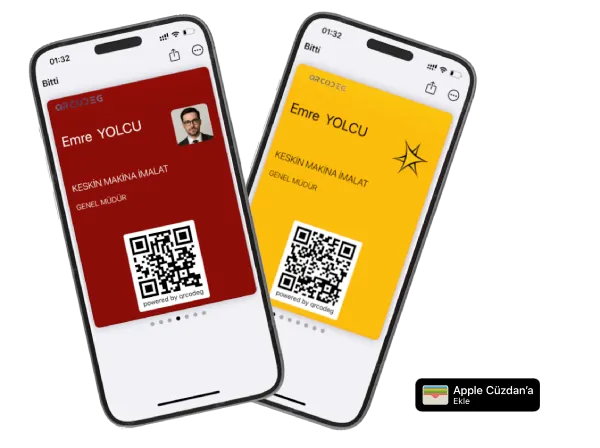
What Is Apple Wallet?
Add Business Card to Apple Wallet: Apple Wallet is the official Apple application that comes pre-installed on iPhone and Apple Watch devices, designed to securely store digital cards and tickets.
From boarding passes to store loyalty cards, from event tickets to transit cards — you can safely store a wide variety of digital content in this single app.
The biggest advantage of Apple Wallet is providing instant access to all your digital cards. You can display, share, and use your cards even from the lock screen. When you take out your iPhone, everything you need — your tickets, cards, and coupons — is right at your fingertips. No need to search through apps or dig through folders.
So is Apple Wallet only used for these things? Not anymore. Business cards can now be added to Apple Wallet, and this is completely transforming networking in the professional world.
Business Cards in Apple Wallet: Why It Matters
Traditional paper business cards get lost, wear out, and can’t be updated.
Digital business cards typically require QR code scanning or link sharing. However, business cards added to Apple Wallet offer a completely different experience. When you open the Wallet app on your iPhone, your business card is right there — always ready, always up to date, and ready to share.
You’re in a meeting and need to share your contact information. Instead of fumbling through your wallet, you simply pull out your iPhone and open the Wallet app. Your business card is on the screen — ready to share via QR code. The person scanning the code instantly accesses all your contact details, your website, and your social media accounts. And if that person is also using an iPhone, they can add your business card to Apple Wallet with a single tap.
This simple yet effective solution is becoming indispensable in the modern professional world.
How to Use Apple Wallet
Accessing Apple Wallet is straightforward.
On iPhone: Find and open the “Wallet” app on your home screen. All your cards will be listed here.
On Apple Watch: Press the Digital Crown (the side button) and select “Wallet” from the app list. Cards on your iPhone automatically appear on your watch as well.
Quick access from the lock screen: Double-press the side button on your iPhone to open Wallet directly from the lock screen. Face ID or Touch ID provides instant access.
Inside the Wallet app, scroll up and down to view your cards. Select the one you want and display it on screen. For business cards, the recipient can scan the QR code on your card to access your contact information.
Another great feature of Apple Wallet is synchronization. A card you add to your iPhone is automatically synced to your Apple Watch and even your Mac through your iCloud account. This means your cards are always with you, no matter which device you use.
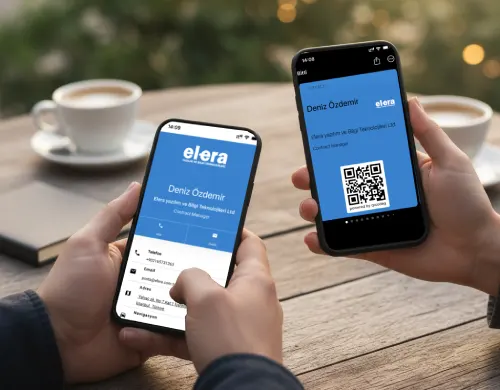
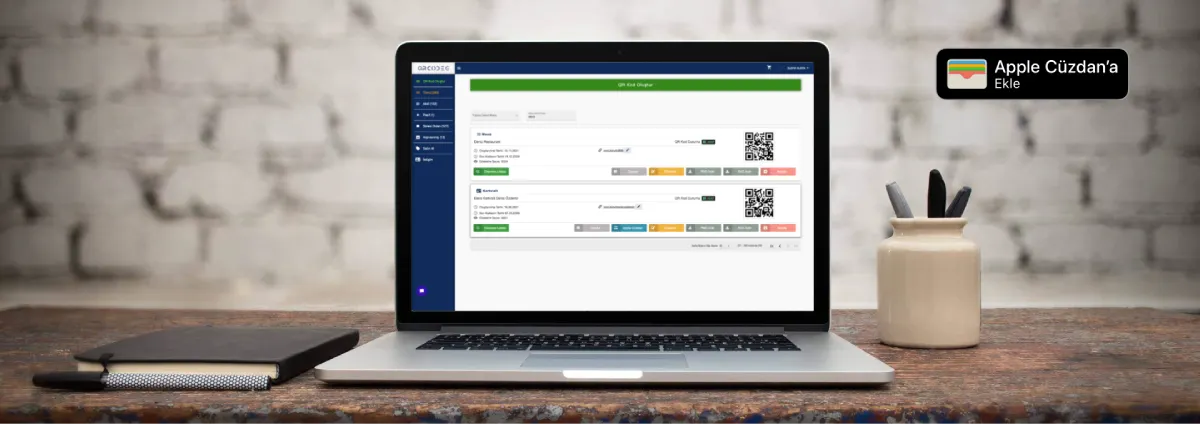
How to Add Your Business Card to Apple Wallet
To add a business card to Apple Wallet, you first need a digital business card.
After creating an account on the QRCodeG platform, you can generate your dynamic QR code by entering your business card details. Add information like your name, title, company name, phone number, email address, website, social media accounts, and profile photo. Then customize the design — upload your corporate logo, choose your brand colors, and adjust the QR code appearance.
Once your business card is ready, you’ll see an “Add to Apple Wallet” button in the admin panel. Clicking this button will download a file with the .pkpass extension. This is Apple’s proprietary business card format that can be opened on iPhone, iPad, Apple Watch, and Mac devices.
Adding from macOS Computer (Fastest Method)
Sign in to the QRCodeG admin panel on your Mac and click the “Add to Apple Wallet” button next to the relevant QR code in your QR code list. Double-click the downloaded .pkpass file. macOS automatically recognizes the file and shows a business card preview. In the preview window, you can review your card and verify all information is correct. Click the “Add to Apple Wallet” button in the preview window. Done! Your business card will appear on both your Mac and, thanks to iCloud sync, automatically on your iPhone too.
Adding Directly on iPhone
Open the Safari browser on your iPhone and sign in to the QRCodeG admin panel. Select your business card and tap the “Add to Apple Wallet” button. The .pkpass file will download automatically. Once the download completes, tap the download icon in the upper right corner of the screen, or open the “Files” app and navigate to the “Downloads” folder. Tap the downloaded .pkpass file. iPhone will automatically open the Apple Wallet preview. You’ll see your business card on screen and can verify all the details. Tap the “Add” button in the upper right corner and you’re done.
Downloading on Computer and Sending to Phone
Sign in to QRCodeG using any computer (Windows, Mac, or Linux). Download the .pkpass file using the “Add to Apple Wallet” button. Now you need to send this file to your iPhone, and there are several ways to do this.
Send via email: Email the downloaded file to yourself as an attachment. Open your email on your iPhone and view the attachment. Tapping the attachment will automatically open Apple Wallet and offer the option to add the business card.
Transfer via AirDrop (for Mac users): Right-click the file on your Mac, choose “Share” and select AirDrop, then choose your iPhone from the list. The file will open automatically on your iPhone with the option to add it to Wallet.
Via iCloud Drive: Upload the file to iCloud Drive. Open the “Files” app on your iPhone, find the file in iCloud Drive, and tap it. The Apple Wallet add screen will appear.
Telegram, Slack, or other messaging apps: Whichever platform you use, send the file to yourself as a message. When you open the message and tap the file on iPhone, Wallet will activate.
No matter which method you choose, the result is the same: the moment you tap the .pkpass file on iPhone, Apple Wallet automatically recognizes the card and starts the adding process.
To move your business card to Apple Wallet
Get Started Now
Your corporate business card now lives in your pocket instead of your wallet — no creasing, no dirt, ready to share whenever you need it.
Join the QRCodeG world and get your dynamic QR code, digital business card, and Apple Wallet pass — all at once.
Order an NFC Card — Custom-printed digital business card orders
Apple Watch Synchronization
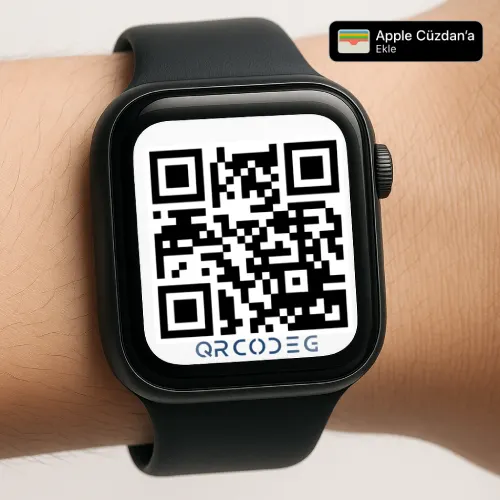
The Apple Wallet business card you add to your iPhone is automatically synced to your Apple Watch as well.
No additional steps required. Through your iCloud account, every card you add to Wallet on iPhone also appears in the Wallet app on your paired Apple Watch. When your phone is in your bag or pocket during a meeting, you can simply raise your wrist and display your business card QR code from Apple Watch. This is especially practical when your hands are full or when you can’t quickly reach your phone.
To open Wallet on Apple Watch, press the Digital Crown and select the Wallet app. Your business card will be there. Select the card and display the QR code on screen. The person across from you can scan the code to access your information.
Dynamic Business Card QR Code: The Power Behind Apple Wallet
The technology behind business cards added to Apple Wallet is dynamic business card QR code technology.
Dynamic QR codes are completely different from static QR codes. When you create a static QR code, the content is fixed forever — even if you change your phone number, the QR code will continue to show the old number. You’d need to create a new QR code and reprint all your materials. However, dynamic business card QR codes work entirely differently.
A dynamic QR code is a type of QR code whose content can be modified, updated, and tracked. The QR code itself (visually) doesn’t change, but the content it redirects to when scanned can be updated whenever you want. When you change your phone number in the QRCodeG admin panel, the same QR code will now show the new number. No need to reprint business cards, no need to regenerate the QR code — simply update from the admin panel and the change is reflected instantly.
This technology is critically important for Apple Wallet business cards. Imagine: hundreds of people have added your business card to their Apple Wallet. You get a new phone number or your title changes. Normally, you’d need to send a new business card to everyone. But thanks to dynamic business card QR codes, the change you make in the admin panel is automatically reflected on all Apple Wallet cards. No one needs to do anything — the cards update themselves.
Another advantage of dynamic QR codes is analytics. You can see how many people scanned your QR code, what hours you’re most active, and which cities scans came from. This data helps you improve your networking strategy. For example, you can see how many people scanned the business cards you handed out at trade shows, how many added them to Apple Wallet, and measure your ROI (return on investment).
Try It Free for 14 Days
You can try all QRCodeG features free for 14 days.
No credit card required. No commitments. Cancel anytime. Within 14 days, create dynamic business card QR codes, test the Apple Wallet integration, make unlimited updates, and review detailed analytics. If the platform suits you, you can activate your QR code and additional services by purchasing credits via the Buy link.
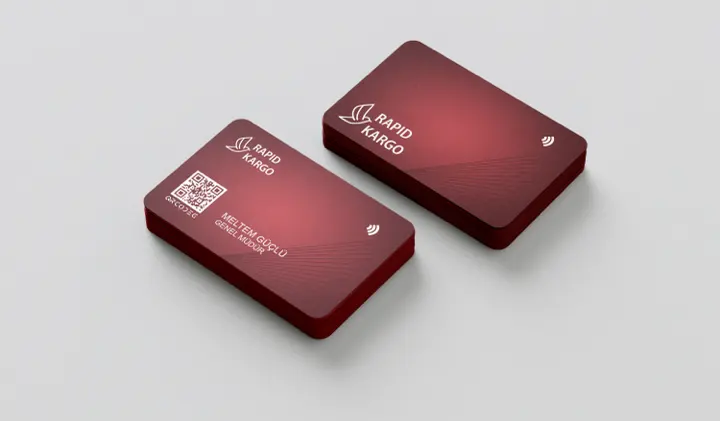
NFC-Enabled Digital Business Card: Tap and Share
Scanning a QR code isn’t always practical.
In dim environments, when your hands are full, or in a hurry, scanning a QR code can be difficult. This is exactly where NFC-enabled digital business cards come in. NFC (Near Field Communication) is a technology that enables data transfer at close range without the need for direct contact.
NFC digital business cards contain an embedded NFC chip. When the person across from you brings their phone (iPhone or Android) close to your card — about 3-5 cm distance — the NFC chip automatically activates and opens your business card page on their phone. No QR code scanning needed, no app to open, no action required from you. Just tap and your information appears on the recipient’s phone.
This technology is especially ideal for those who want to project a premium image. It leaves a modern, technological, and professional impression. Plus, NFC cards are extremely durable — made from plastic, metal, or wood materials, they can be used for years.
QRCodeG’s custom-printed digital business cards include both NFC and QR code. The QR code printed on the card is available for older phones or those who prefer scanning QR codes. However, the NFC feature offers an extremely fast and easy experience on modern devices. When the recipient takes your card, they get both a physical keepsake and a digital connection with you.
Custom-Printed Digital Business Cards: Reflect Your Corporate Identity
Digital solutions are great, but sometimes a physical business card is still necessary.
In job interviews, trade shows, and networking events, handing over a tangible business card still leaves a powerful impression. QRCodeG’s custom-printed digital business card service combines the trustworthiness of traditional business cards with modern technology.
Our custom printing options include various materials. PVC plastic cards offer the standard credit card feel — durable, water-resistant, and long-lasting. Metal cards create a luxurious and premium feel — leaving a memorable impression with their weight, cool metallic texture, and shiny surface. Wooden cards are a natural and eco-friendly option — standing out with their organic texture, warm feel, and unique appearance. Carbon fiber cards offer a technological, modern, and lightweight yet sturdy alternative.
Each card features your corporate logo in full-color print. Your brand colors, contact information, QR code, and NFC chip are professionally integrated. On the back of the card, you can optionally add additional information, social media icons, or custom design elements.
We offer significant discounts on bulk orders. For corporate customers, additional services like expedited production and free design support are also available.
Apple Wallet Business Card Features
Your business card in Apple Wallet is more than just a simple card — it’s actually a dynamic digital identity. By adding your business card to Apple Wallet, you become the owner of a dynamic corporate identity.
Front Side: The front of your business card features your name, surname, title, company name, and either your profile photo or logo. You can choose the background color. There’s also a large QR code in the center — this QR code redirects to the full URL of your business card page. When the person across from you scans this code, they instantly access all your contact information, social media accounts, website, and more.
Back Side: The back of the card contains your profile link, banking information, and tax ID information. This way, you can instantly access these details when needed.
Dynamic Updates: Every change you make from the admin panel is automatically reflected on all Apple Wallet cards. Did you change your phone number? Update it, and everyone sees the new number. Did you create a new social media account? Add it, and everyone using your card sees it. Did your office address change? Update it, and the Google Maps link automatically shows the new location.
Offline Access: Apple Wallet cards work offline. Even without an internet connection, you can display your card and share the QR code. The recipient needs internet when scanning the QR code, but it’s not required for you to display the card.
Security and Privacy: Apple Wallet cards are subject to Apple’s high security standards. Your cards are stored encrypted and can be protected with Face ID or Touch ID.
Corporate Use: Digital Business Cards for Your Entire Team
Individual use is great, but the real power emerges in corporate applications.
Imagine your company has 10, 50, or 100 employees. Each one needs current business cards. With the traditional method, you’d print business cards for every employee. When someone’s title changes, you’d print new cards. When someone’s phone number changes, you’d print again. Costs increase, complexity increases, and tracking updates becomes difficult.
With QRCodeG’s corporate solution, this entire process becomes digital and centralized. From the admin panel, you create business cards for all your employees. Each employee receives their own dynamic business card QR code and Apple Wallet card. Now every employee carries their own card on their phone and shares it whenever they want. Meanwhile, you manage all cards centrally from the admin panel.
Did an employee’s title change? Update it in the admin panel. The change is automatically reflected on all business cards shared via that employee’s QR code, on all cards added to Apple Wallet. Did a new employee start? Create a new business card in the admin panel, send the QR code and Apple Wallet link to the employee — done. Did an employee leave? Deactivate their card, and it’s no longer active.
Apple Wallet and Dynamic Social Media Links
Beyond just business cards, you can consolidate your entire digital presence in Apple Wallet.
QRCodeG’s dynamic social media and multi-link QR code solution combines Instagram, LinkedIn, Facebook, Twitter, TikTok, YouTube, and more into a single QR code. This QR code can also be added to Apple Wallet just like a business card. If you’re a social media influencer, content creator, or want to strengthen your personal brand, this feature is perfect for you.
Your fans or followers add your “all links” card to their Apple Wallet and can reach you with a single tap anytime. When you share a new post on Instagram or publish a new video on YouTube, just update the links from the admin panel — and the cards in everyone’s wallets refresh automatically. Your followers always access your most current content.
This feature is particularly useful at events, conferences, workshops, or training sessions. Participants save your entire digital presence to their phone contacts and can easily stay connected with you afterward. Did you launch a new podcast?
Frequently Asked Questions
What is Apple Wallet, and is it free?
Apple Wallet is a free Apple app that comes pre-installed on iPhone, iPad, and Apple Watch devices. It stores digital cards, tickets, and passes. The app itself is free, but whether the content added to it (like business cards) is free or paid depends on the platform providing the content.
What do I need to add a business card to Apple Wallet?
To add a business card to Apple Wallet, you need an iPhone, iPad, or Mac device. You’ll need to create a dynamic business card QR code from a platform like QRCodeG and download the Apple Wallet file in .pkpass format. When you open this file, the option to add it to Apple Wallet appears automatically.
If I update my business card, will the cards in Apple Wallet also update?
Thanks to dynamic business card QR code technology, all updates you make from the admin panel (phone number, email, title, address, etc.) automatically generate an updated digital business card. You can re-download your pass and load it onto your phone.
Will the business card also appear on Apple Watch?
Yes. The Apple Wallet business card you add to your iPhone is automatically synced to your paired Apple Watch as well. You can display and share your business card from your watch’s Wallet app.
Does Apple Wallet work on Android phones?
No, Apple Wallet only works on iOS (iPhone, iPad) and watchOS (Apple Watch) devices. However, dynamic business card QR codes and NFC-enabled digital business cards work seamlessly on every platform (iOS and Android). Android users can access your business card information by scanning the QR code or via NFC.
Can I send my business card via email or WhatsApp?
Yes. You can send the .pkpass file as an email attachment, WhatsApp message, Telegram, AirDrop, or any file sharing method. When the recipient opens the file on an iOS device, the option to add it to Apple Wallet is automatically presented.
Can I add a card to Apple Wallet from a macOS computer?
Yes. When you double-click the .pkpass file on your macOS computer, a preview opens and the “Add to Apple Wallet” option appears. The card you add is automatically transferred to your iPhone and Apple Watch via iCloud sync.
What is a dynamic business card QR code?
A dynamic business card QR code is a special type of QR code whose content can be modified, updated, and analyzed afterward. The visual appearance of the QR code doesn’t change, but the content it redirects to can be updated whenever you want. This way, you can share constantly updated information with a single QR code.
How does an NFC-enabled digital business card work?
NFC (Near Field Communication) technology enables data transfer without contact using a chip embedded in the card. When the recipient brings their phone (iPhone or Android) within 3-5 cm of your card, NFC automatically opens your business card page. No QR code scanning needed.
How long does a custom-printed digital business card order take?
Custom-printed digital business card orders are produced and shipped within 3-5 business days after design approval. For urgent orders, expedited 1-2 business day production is available for an additional fee.
Are there bulk order discounts?
Yes. Discounts are automatically applied for bulk purchases. Contact us for detailed information.
How many links can be added to a business card?
You can add unlimited links to your business card: website, social media accounts (LinkedIn, Instagram, Facebook, Twitter, TikTok, YouTube), WhatsApp Business, Google Maps location, PDF catalog, menu, portfolio, and more. Add, update, or delete as much content as you want from the admin panel.
Do Apple Wallet cards work offline?
Yes. Apple Wallet cards are downloaded to your device and accessible offline. Even without an internet connection, you can display your cards and share the QR code. However, the recipient needs an internet connection when the QR code is scanned to access the business card page.
Are business cards secure? Can they be deleted?
Apple Wallet cards are subject to Apple’s security standards and are stored encrypted. You can deactivate or completely delete your card from the admin panel at any time. Deactivated cards stop working. Users can also delete the card from their own wallets.
Getting Started with QRCodeG Is Easy
You can start adding a business card to Apple Wallet right away.
First, go to qrcodeg.com and create a free account. Your email address and password are enough. After confirming your account, sign in to the admin panel. Click the “Create New QR Code” button and select the business card option. Enter your name, title, company name, phone number, email address, website, and social media accounts. Upload your profile photo. Add your corporate logo and choose your brand colors. Your business card is ready!
Now click the “Add to Apple Wallet” button. Download the .pkpass file. If you’re on a macOS computer, double-click the file; on iPhone, tap the file. Apple Wallet will open automatically and add your business card. The process is complete!
To share your business card, use your QR code, hand out your NFC cards, or send the .pkpass file directly via email/WhatsApp. Update your information from the admin panel anytime — changes are automatically reflected on all cards.
Conclusion: Be Part of the Digital Transformation
Business cards have been used in the professional world for centuries, but technology is completely transforming them.
This evolution — from paper business cards to dynamic business card QR codes, NFC-enabled digital business cards, and now Apple Wallet integration — is making networking faster, easier, and more effective. Be the leader of this transformation with QRCodeG.
With your business card always with you on your iPhone, Apple Watch, and Mac computer, leave a professional impression every time. Share your current information with a single tap, communicate easily with your customers, business partners, and potential connections. Thanks to the dynamic update feature, your information is always accurate and current. Exist in both the traditional and modern worlds with your NFC-enabled physical cards.
Adding a business card to Apple Wallet is not just about using technology — it’s also about demonstrating your professionalism, modern thinking, and customer-focused approach. You give the message: “I keep up with technology, I’m open to innovations, and I want to offer you the best experience.” This leaves a memorable impression and sets you apart from your competitors.
Tags
#AppleWallet #AppleWalletBusinessCard #DynamicBusinessCardQRCode #NFCDigitalBusinessCard #CustomPrintedDigitalBusinessCard #iPhoneBusinessCard #AppleWatchBusinessCard #DigitalBusinessCard #QRCodeBusinessCard #QRCodeG #BusinessCardQRCode #DynamicQRCode #DigitalTransformation #PassKit #pkpass