


What Is a Vector Image?
Digital images fall into two main categories: raster (pixel-based) and vector. Raster images such as JPEG, PNG, or GIF are made up of a fixed number of pixels. When enlarged, the pixel structure breaks down and the image becomes blurry.
Vector images, on the other hand, are defined by mathematical formulas, points, lines, and curves. This structure allows them to be scaled to infinite size with no quality loss. The most common vector formats are: SVG, EPS, AI, and PDF.
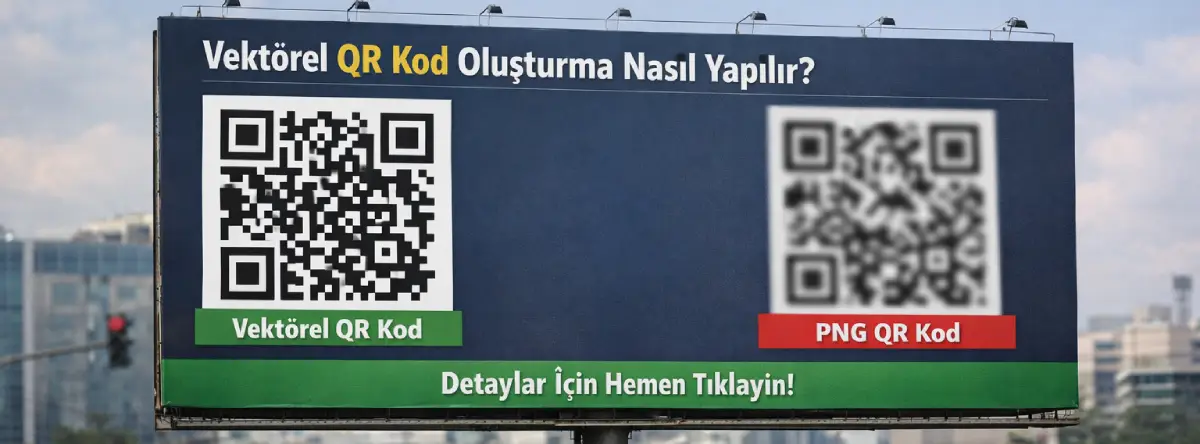
To put this into perspective: when you take a PNG QR code file from business card size and scale it up to billboard dimensions, the edges of the QR code become blurry and the code may stop scanning. The same design in SVG or EPS format keeps perfect sharpness at any size.
What Are the Advantages of Vector Images?
The advantages of vector format become especially clear in corporate design and printing workflows. When evaluated specifically for QR code generation, these advantages become even more critical:
🔍 Infinite Scalability
You can take the small QR code from a business card and scale it up to billboard size. Image quality stays identical.
🖨️ Superior Print Quality
Offset and digital printing produce sharp, crisp output. This is especially critical for QR code printing.
✏️ Easy Editing
Color, size, and shape changes can be made easily without pixel distortion. Full compatibility with design programs.
⚡ Smaller File Size
For simple shapes, vector files are far smaller than equivalent raster files. They also load faster on the web.
Beyond all these advantages, vector images also support transparent backgrounds. SVG and EPS formats work seamlessly on different colored surfaces, which is especially useful for branded or logo-included QR code designs.
Which Applications Are Used to Create Vector Images?
Vector design applications come in both professional and free options. After generating a vector QR code, you can edit it in these programs, adapt it to your brand, or integrate it into your print files.
Adobe Illustrator
The industry standard, Adobe Illustrator offers the most powerful tools for vector design. It is widely preferred for corporate identity projects and print-ready QR code designs. It is paid software with a monthly subscription model.
Inkscape (Free)
Completely free and open source, Inkscape is a strong alternative to Adobe Illustrator. It supports the SVG format natively. Ideal for individual users and small businesses. It can also be used successfully for editing vector QR codes.
CorelDRAW
CorelDRAW is widely used in printing and advertising agencies worldwide and offers strong print workflow features. It produces high-quality output in SVG, EPS, and AI formats — all formats preferred by most commercial print shops.
Figma and Affinity Designer
Modern interface design tools Figma and Affinity Designer can also produce vector output in SVG format. Figma offers a free plan, while Affinity Designer can be purchased with a one-time payment as an affordable alternative.
💡 Which Format Should You Choose?
- SVG → Ideal for websites and digital use. Can be embedded directly into HTML.
- EPS / AI → Industry standard for printing and commercial print workflows.
- PDF (vector) → Universal option for both digital sharing and printing.
Why Is a Vector QR Code So Important?
What happens when you place a PNG file from a standard QR code generator on your business card or packaging? At small sizes, you may not notice any issues. But the high-resolution demands of a print press cause pixel-based QR codes to blur at the edges, leading to scanning failures.
In a vector QR code file, every black module of the QR code is a mathematically defined rectangle or square. The print press reproduces these shapes with infinite sharpness. Result: a QR code that scans perfectly at any size.
— qrcodeg.com Design Perspective
The vector QR code format is critical especially in the following use cases:
🪪 Business cards and brochure printing
📦 Packaging design and label printing
🪟 Signage, banners, and roll-up displays
📰 Newspaper and magazine ads
How to Create a Vector QR Code with QRCodeG
Creating a vector QR code on QRCodeG is straightforward. You can access basic features without registration. With a free account, you can download full-resolution output in SVG format.
1. Choose the QR Code Content
The first step is to choose what content your QR code will carry. Pick from dozens of QR code types: website URL, contact information (vCard), phone number, email address, Wi-Fi password, PDF document, or plain text.
2. Customize the Design
In the QRCodeG design panel, personalize the appearance of your QR code to match your brand. Use color, background, module shape, and logo customization options to design a striking QR code.
3. Choose the Vector Format
On the download screen, select SVG as your format option. SVG is the ideal vector format for web and digital use.
4. Download and Use
After downloading your vector QR code, you can transfer it directly into your design program. It integrates seamlessly with applications such as InDesign, Illustrator, CorelDRAW, or Figma. Set the size of your print project as needed; your QR code will not lose any quality.
⚠️ ALWAYS TEST SCAN BEFORE SENDING TO PRINT
After transferring your vector QR code into your design program, always verify the code works correctly by scanning it with multiple devices and apps before sending to print. Color or size changes can affect the contrast ratio.
Where and How Can You Use a Vector QR Code?
Once you have your QR code in SVG format, the use cases are extensive. Here are practical scenarios:
Print Materials
Place the vector file directly into your print file. The print shop can scale it to any size when they receive the file, with no quality concerns. This approach saves time and cost especially in packaging, label, and catalog projects.
Website and Digital Use
An SVG-format QR code can be embedded directly into your website’s HTML. It displays with crystal clarity on all devices including Retina displays, and loads much faster than PNG/JPEG formats. This clearly demonstrates the digital advantage of vector format in QR code generation.
Presentations and Social Media
You can add SVG files to presentation tools like PowerPoint, Keynote, or Google Slides. When the presentation is projected on screen, your QR code can be easily scanned by attendees. Vector QR codes added to social media cover photos also display sharply at any screen size.
✅ Things to Watch When Using Vector QR Codes
- Preserve the quiet zone: Don’t crop the white space around the QR code; this area is required for scanners to recognize the code.
- Maintain sufficient contrast: The higher the contrast between dark modules and light background, the faster the QR code scans.
- Mind the minimum size: For a printed QR code to be readable, a minimum size of 2 × 2 cm (about 0.8 × 0.8 inches) is recommended.
- Use dynamic QR codes: Content changes don’t require regeneration; your vector file always stays current.
Conclusion: Vector QR Codes Are Essential for Professional Work
Raster formats like PNG and JPEG may be sufficient for everyday digital sharing. But if you take your work seriously and want your QR codes to look perfect in every context, you should choose vector format. Selecting SVG during QR code generation reduces print costs, eliminates rework, and ensures your brand leaves a quality impression.
Create Your Vector QR Code Now
Generate brand-customized vector QR codes in SVG format on qrcodeg.com — in just minutes. Get started for free.
Sources
1 W3C — Scalable Vector Graphics (SVG) Specification — w3.org
2 Adobe — Understanding Vector vs. Raster Graphics — adobe.com
3 ISO/IEC 18004:2015 — QR Code Bar Code Symbology Specification — iso.org
4 Inkscape — Open-Source Vector Graphics Editor — inkscape.org