


★★★★★ Get more Google reviews
Google Review QR Code Generator
Let customers reach your business’s Google review screen with a single scan. No searching, no hunting for your business name: leaving a review takes seconds.
- Use it on table cards, receipts, the counter and packaging
- Your printed QR code stays the same even if the link changes
- See which table and which branch gets scanned
Create Google Review QR CodeHow do I get my review link?
14-day free trial · No credit card required · Pricing
What Is a Google Review QR Code?
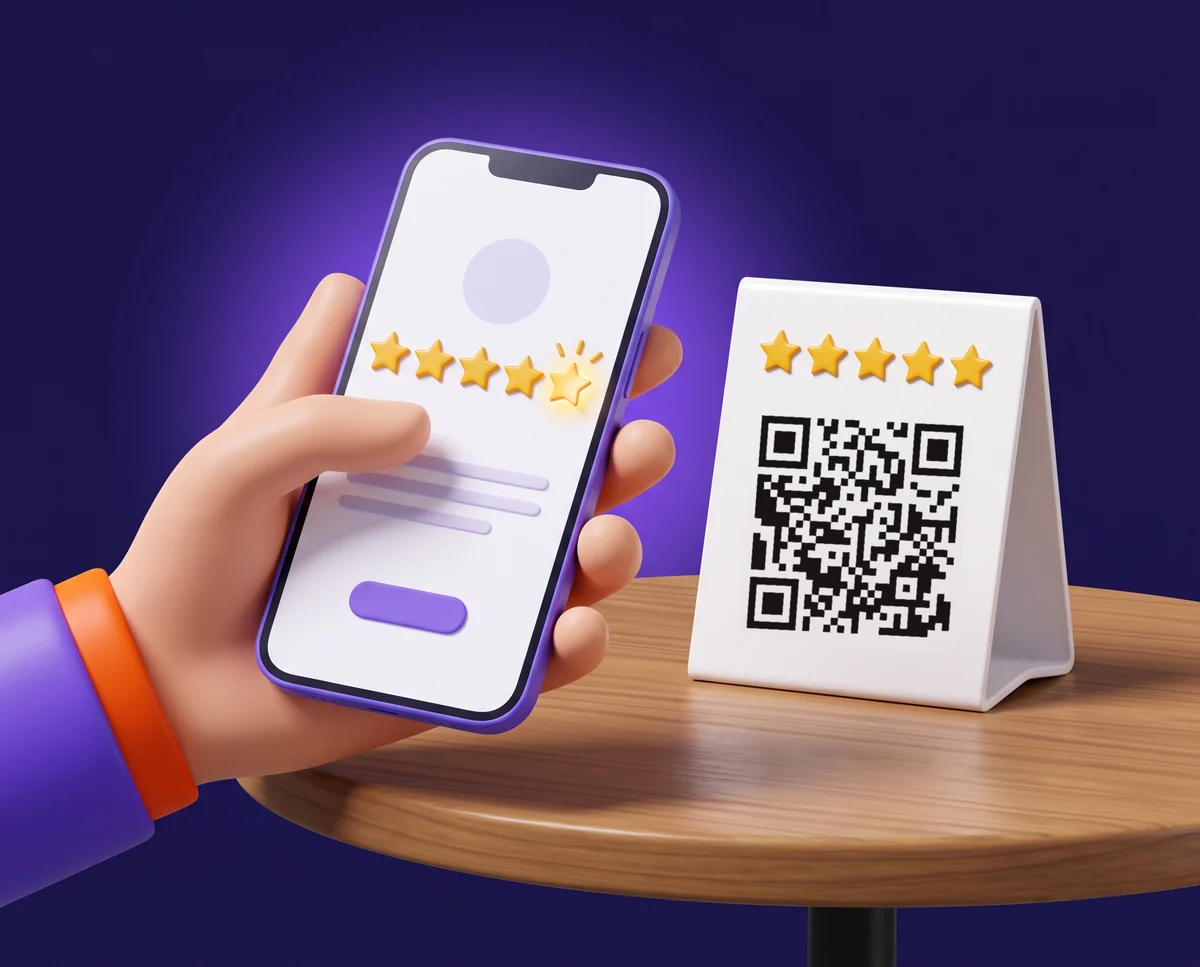
A Google review QR code is a QR code that carries the review link of your Google Business Profile. When a customer scans it with their phone camera, the review and rating screen opens directly.
The review QR code you create on Qrcodeg is dynamic: the QR code contains your own short link, and you can change where it points from your dashboard at any time. Scans are reported by date and location. For other links such as a website, WhatsApp or a phone number, see our URL QR code page.
Create Your Google Review Link Easily
A Google review link takes your customer straight to your business’s review and rating screen. You don’t need to look for it; the generator creates it for you:
1
Search for your business
Start typing your business name in the generator above; matching businesses from Google Maps are listed.
2
Pick it from the list
As soon as you select your business, your review link is created automatically and filled in.
3
Create your QR code
Click Create QR Code. Your link is attached to the QR code, and scanning it opens the review screen directly.
Already have your review link (e.g. https://g.page/r/…)? Just paste it into the field without searching.
Static Review QR Code or Qrcodeg?
A static QR code writes your review link directly into the code; once printed it can’t be changed and it doesn’t show who scanned it. Qrcodeg’s dynamic review QR code keeps you in control:
| Feature | Qrcodeg dynamic review QR | Static review QR |
|---|---|---|
| Change the link later | ✓ Anytime from your dashboard | ✗ Reprint if the link changes |
| Scan reports | ✓ By date and city | ✗ No idea how many scans |
| Channel and campaign tracking | ✓ Separate QR per channel, side-by-side reports | ✗ None |
| Redirect to another platform | ✓ With the same QR | ✗ Needs a new QR |
| Reminder before expiry | ✓ Email 7 days before | ✗ None |
The Qrcodeg Difference
No Auto-Renewal
Unlike most subscription services, we don’t store your card details and we don’t auto-renew. We email you 7 days before expiry; if you want to renew, you make the payment yourself. No surprise charges on your card.
Real Human Support
Have a question? Contact us and our team will help you from setup to printing.
Which Channel, Which Campaign?
Your QR code isn’t only scanned on tables; it’s also scanned on your website, social media posts and ad creatives. Create a separate review QR code for each channel and campaign, compare where and when scans come from, and see which ad brings results.
Why a Dynamic Google Review QR Code?
A review QR code is printed once and then sits on tables, counters and packaging for months. A dynamic QR code keeps you in control the whole time.
Same QR, Even If the Link Changes
If your profile changes, a branch moves or you get a new review link, just update the link in your dashboard. No need to reprint your materials.
Scan Reports
See when and in which city each QR code was scanned. Measure which spot works with scan analytics.
Track by Table and Spot
Create separate QR codes for table cards, receipts and the counter, and compare which one brings in more reviews.
Folders for Branches
Keep each branch’s QR codes in separate folders; agencies can manage their clients from the same dashboard.
Redirect to Another Platform
When needed, you can point the same QR code to another review platform or a campaign page.
No Landing Page, No Limits
Scanners go straight to the review screen. There is no limit on the number of scans.
Where to Place Your Google Review QR Code
The best results come when the experience is fresh and the customer’s hands are free:
Table Cards
In restaurants and cafés, after the meal while waiting for the bill.
Receipts and Bill Folders
On the receipt or bill folder handed over with the check.
Checkout and Reception
On a visible stand or counter sticker during payment.
Packaging and Delivery
On an insert card in takeaway and e-commerce orders.
Business Cards
On the back of your business card with a “Rate us” note.
Hotel Rooms
On the in-room info card or at check-out.
Salons and Clinics
In the waiting area after the service or on appointment cards.
Service and Vehicles
On the service handover slip or a sticker inside the vehicle.
Tips for Getting More Reviews
- Ask at the right moment: Show the QR code when the service is complete or when the customer expresses satisfaction.
- Print it large enough: Print the QR code at least 2 × 2 cm (about 0.8 in); if it will be scanned from a distance, make it about one tenth of that distance.
- Add a short call to action: A one-line text such as “Rate us on Google” increases scans.
- Involve your team: Staff gently mentioning the QR code works better than a card on its own.
- Reply to reviews: Politely replying to reviews, especially negative ones, builds trust with new customers.
Follow Google’s Review Policies
Google wants reviews to reflect genuine customer experiences. Reviews that break the rules can be removed and your profile can be affected:
- Don’t offer discounts, gifts or rewards in exchange for reviews.
- Don’t ask only happy customers for reviews; offer the QR code to everyone the same way.
- Don’t ask employees or acquaintances to write fake reviews.
- Don’t have many reviews written from the same device in a short time.
A QR code makes leaving a review easier; what the review says always belongs to the customer.
Frequently Asked Questions
Is the Google review QR code free?
You can try your QR code free for 14 days; no credit card required. After the trial, it is charged annually per QR code. See current prices on our price list.
I don’t know my Google review link. What should I do?
You don’t need to find it. Search for your business name in the generator and pick it from the list; your review link is created automatically. If your business doesn’t appear, copy the link from “Get more reviews” in your Google Business Profile and paste it.
Is there auto-renewal? Will my card be charged without notice?
No. Your card details are not stored and there is no auto-renewal. We email you 7 days before your QR code expires; if you want to renew, you make the payment yourself.
Does the person who scans go straight to the review screen?
Yes. No ads or landing page are shown; the scanner goes directly to your business’s review and rating screen. They need to be signed in to a Google account to write a review.
Do I need to reprint the QR code if my review link changes?
No. Just enter the new link in your dashboard; your printed QR code stays the same and points to the new address.
I have several branches. How do I manage them?
Create a separate review QR code for each branch and organize them in folders. Each QR code has its own scan report.
Can I see how many people scanned it?
Yes. The scan report in your dashboard shows each QR code’s number of scans, dates and cities.
Is there a scan limit?
No. Your Google review QR code can be scanned an unlimited number of times.
Can I point the same QR code to a different address?
Yes. You can change the link your QR code points to at any time, for example to another review platform or a campaign page.