


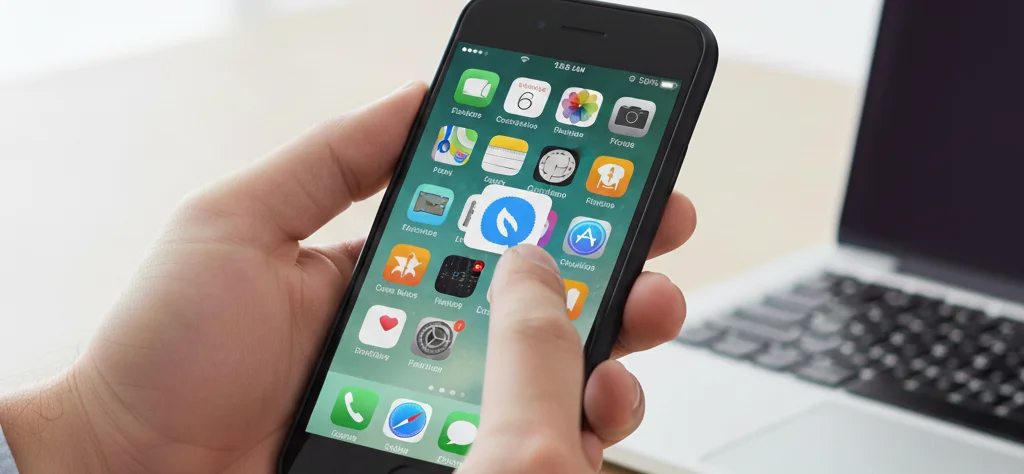
Want one-tap access to the web pages you use most? Add your Qrcodeg.com digital business card, your portfolio or an important link to your phone’s home screen and use it like an app. In this guide, we explain step by step how to add your kod.kim links to the home screen.
What is this feature for?
Adding a link to the home screen makes life easier in many situations:
Sharing your digital business card: you’ve created your QR code business card and your kod.kim link is ready. By adding it to your home screen, you can open and show your card with one tap when you meet someone. No need to have them scan the QR code.
Professional presentation: in an interview, at a networking event or at a trade show, opening your digital business card instantly is a real plus. Instead of searching through your apps, you open it straight from the home screen icon.
Quick access: open any web page you visit often with one tap, without launching the browser or searching.
Faster loading: some pages added to the home screen load faster, because the browser caches them
Add a link to the home screen on iPhone
On iPhone, you can do this easily from the Safari browser.
Step 1: open the page in Safari
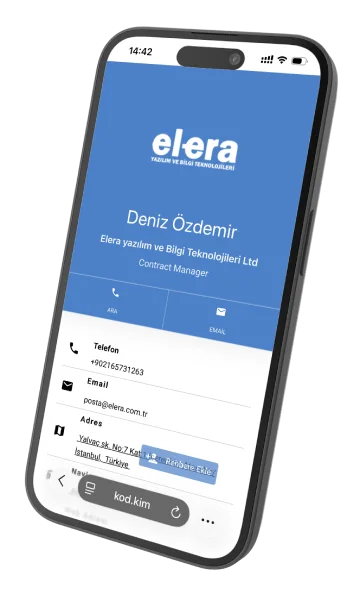
If you have a Qrcodeg QR code, scan it with your phone’s camera, or open Safari and go to the kod.kim link you want to add to the home screen. For example, your business card link might look like kod.kim/denizozdemir. Make sure the page has fully loaded.
Make sure the page has loaded, as shown in the image.
Step 2: tap the Share button
Once the page has loaded, tap the 3 dots at the bottom of the screen, then the Share button in the menu that opens. This button is in Safari’s toolbar.
Step 3: find the Add to Home Screen option
Scroll down the share menu. You’ll see the “Add to Home Screen” option. Tap it.
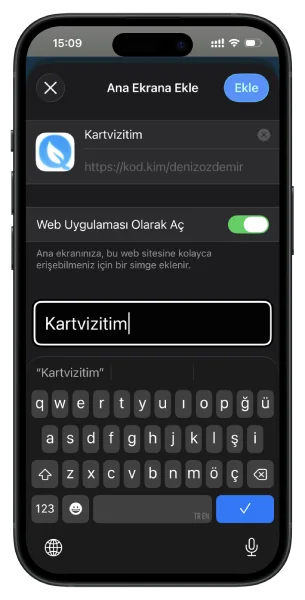
Step 4: choose a name and add it
On the screen that appears, you can name your shortcut, for example “My Card” or “Digital Business Card”. Then tap “Add” in the top right corner.
Done
Your shortcut now appears on the home screen like an app icon. Every time you tap it, your kod.kim page opens directly.
Create your QR code and add it to your iPhone screen
Keep your business card with you at all times: to access all your contact details in seconds, create your QR code on Qrcodeg.com and easily add it to your iPhone screen
Add a link to the home screen on Android
On Android, you do this from the Chrome browser. The steps are similar in other browsers.
Step 1: open the page in Chrome
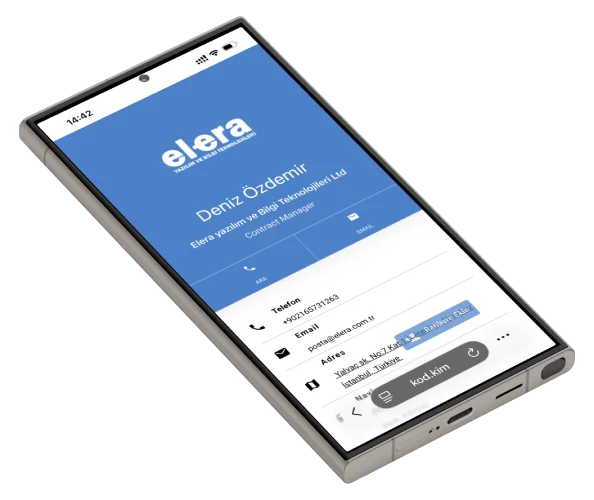
Open Chrome and go to your kod.kim link. Make sure the page has fully loaded.
Step 2: open the menu
Tap the three-dot menu icon in the top right corner of the screen. It opens Chrome’s main menu.
Step 3: choose Add to Home screen
In the menu, find the “Add to Home screen” option and tap it.
Step 4: choose a name and confirm
You’ll be asked to name the shortcut. Choose a name that’s easy to remember, such as “My Card”. Then tap “Add”.
Step 5: place it on the home screen
On some Android versions, the system asks whether to add the shortcut to the home screen automatically. Confirm with “Add automatically” or “Add to Home screen”.
Done
Your shortcut is now on the home screen. A single tap is all it takes to open your digital business card or your kod.kim page.
Add your digital business card to your Android screen
Keep your business card with you at all times: to access all your contact details in seconds, create your QR code on Qrcodeg.com and easily add it to your Android device’s screen
Tips and tricks
Choosing a name: go for short, clear names. “My Card”, “CV” or “Portfolio” display properly and remind you right away what they’re for.
Several shortcuts: if you have several kod.kim links for different purposes, add each one to the home screen. For example, one for your personal card and another for your company information.
Create a folder: if you have lots of shortcuts, group them in a folder to keep your home screen tidy.
No updates needed: the link added to the home screen always shows the latest content. If you change your kod.kim page, the shortcut automatically opens the new version.
Conclusion
Adding your digital business card or your important kod.kim links to the home screen makes professional life much easier. In an interview, at an event or in everyday life, you can show your digital business card in seconds.
If you haven’t created your digital business card yet, go to qrcodeg.com to create your QR code business card now and get your kod.kim link.
📱 Canlı Önizleme
Ad Soyad
Ünvan
Şirket Adı