


🏢 New · Team QR code sharing
Your company’s QR codes in your employees’ pockets
Send your business cards, product catalog, website and presentation to your employees’ phones. Always at hand in the QRCodeG app: one tap to open and let the customer scan.
- Employees join with an invitation link, no account needed
- Update a QR code and it’s up to date on every phone
- Revoke a departing employee’s access in one click
Get started in the panel →
 How does it work?
The Basic plan is currently free · App for iPhone and Android
What is team QR code sharing?
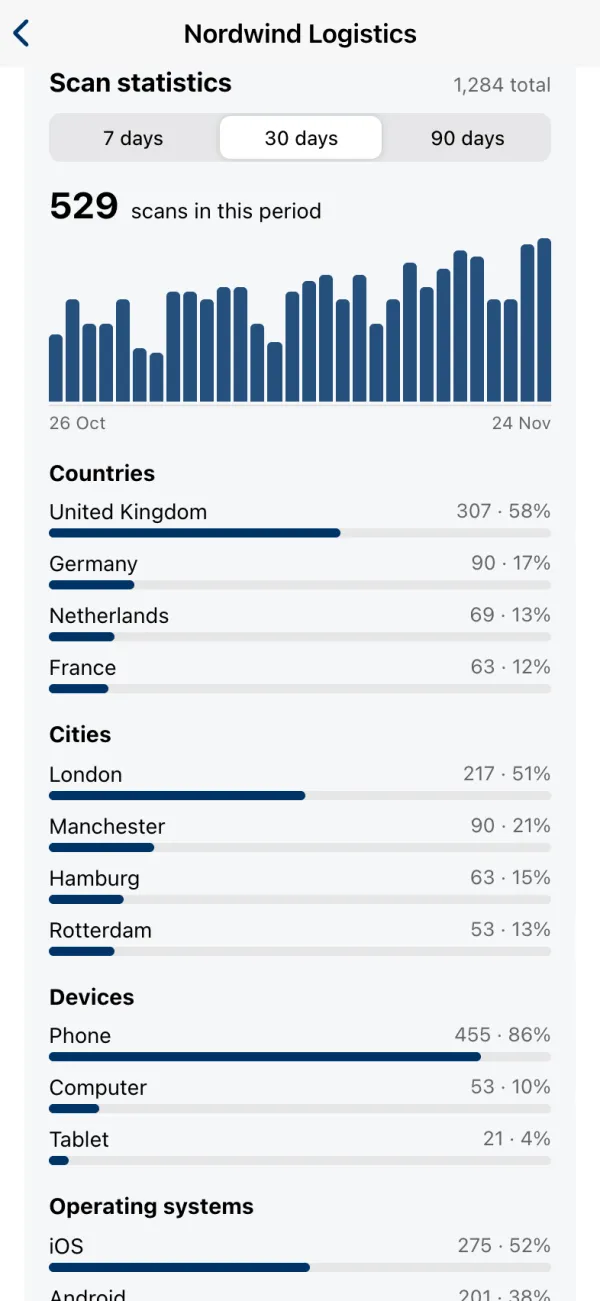
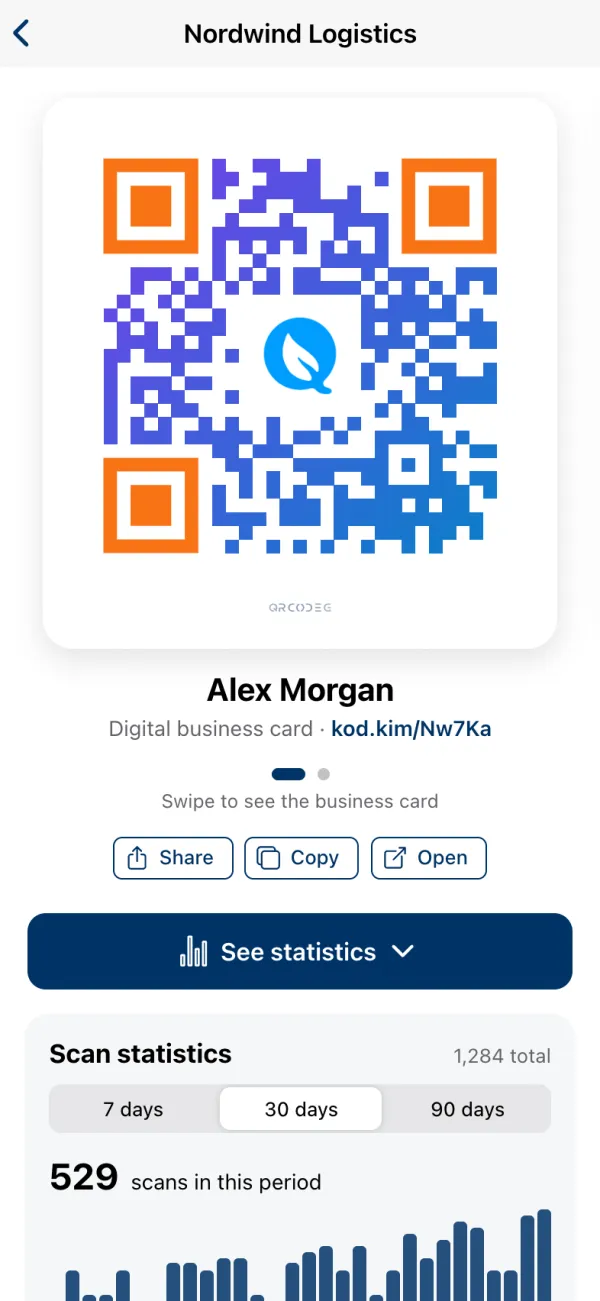
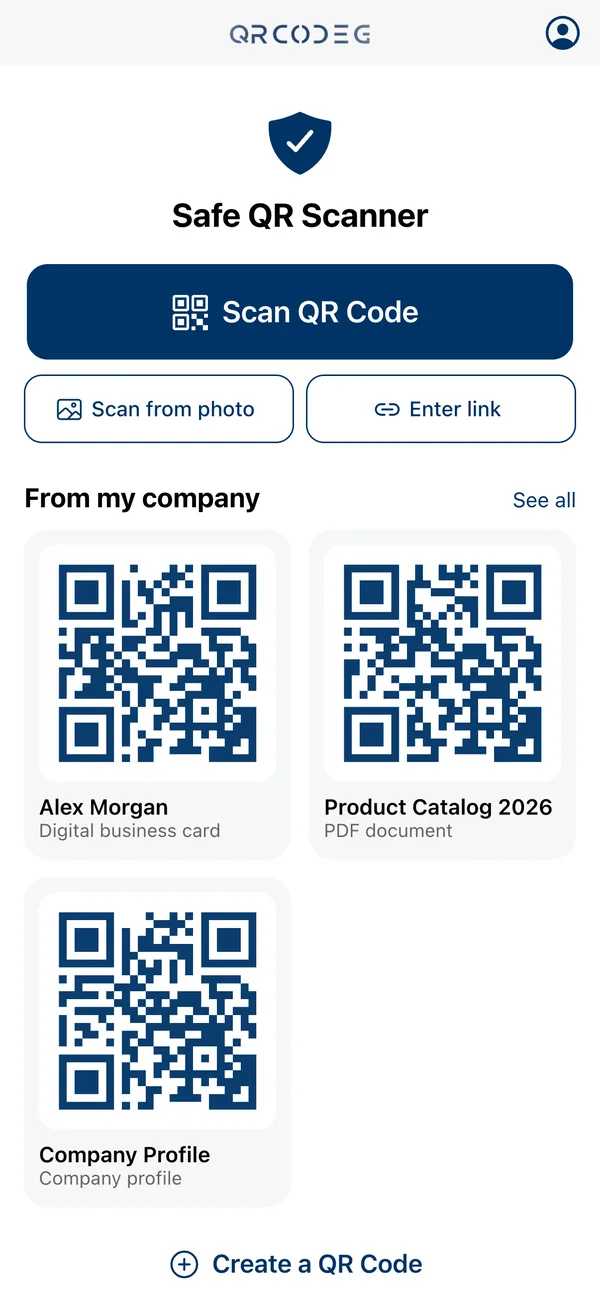
It lets you share the QR codes your company creates in the Qrcodeg panel with the employees you choose. In the QRCodeG app, under “From my company”, employees see their own business card and the QR codes you shared; they show the large QR screen for a customer to scan, or send the link by WhatsApp, email or SMS. Ideal for sales teams, field staff, store employees and trade show teams.
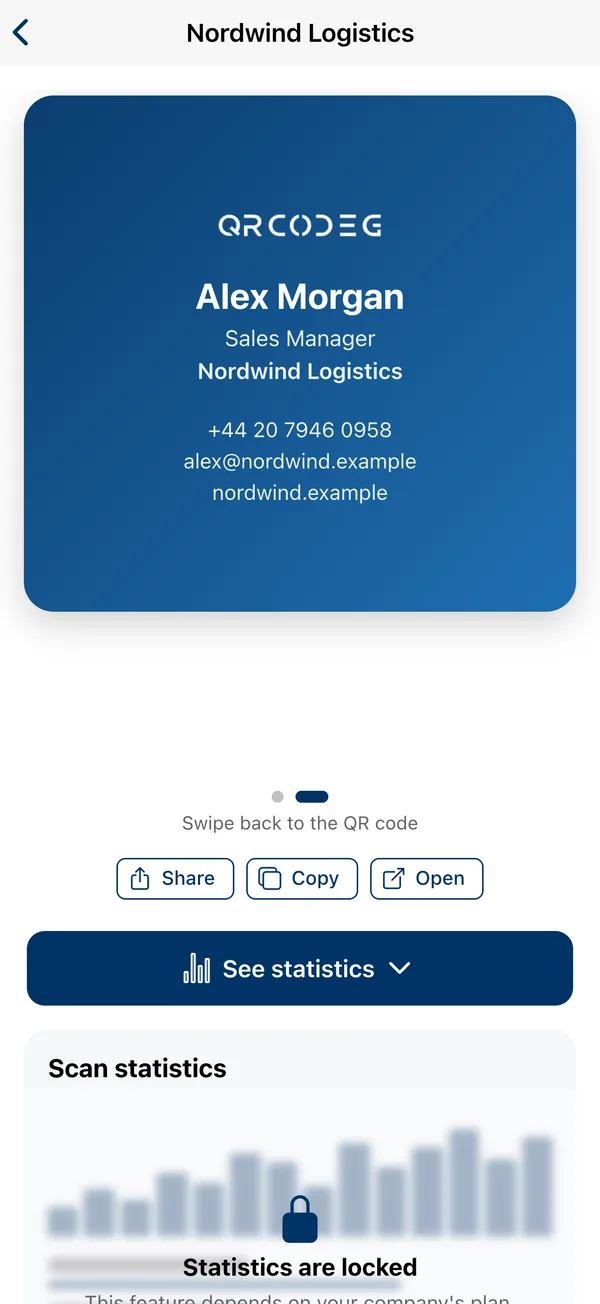
This is how it looks on your employee’s phone
The QR codes you share appear under “From my company” in the QRCodeG app. Employees open them in one tap, right in front of the customer.
Share with your employees in 3 steps
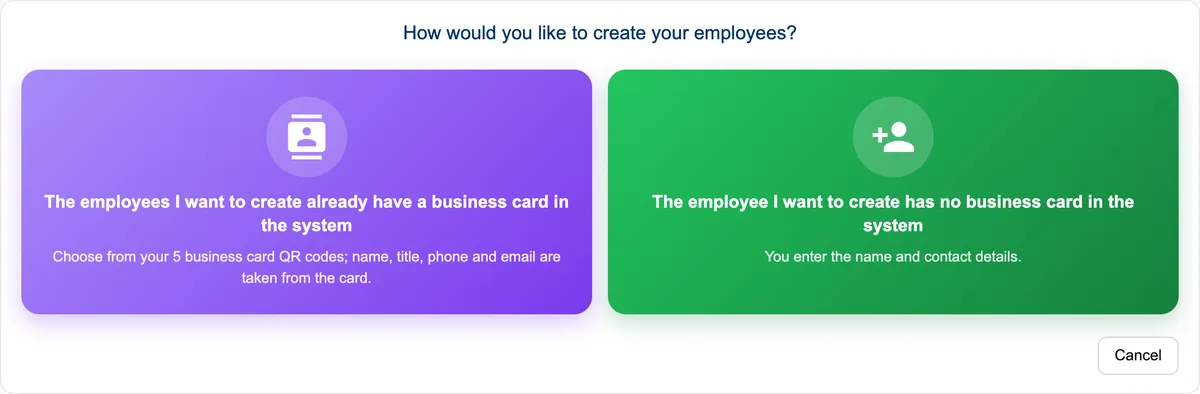
Create your employees
Open the Business page in the panel. If you have business cards, create employees from them in one go; each card is linked to its employee automatically. Add employees without a card by name and email.
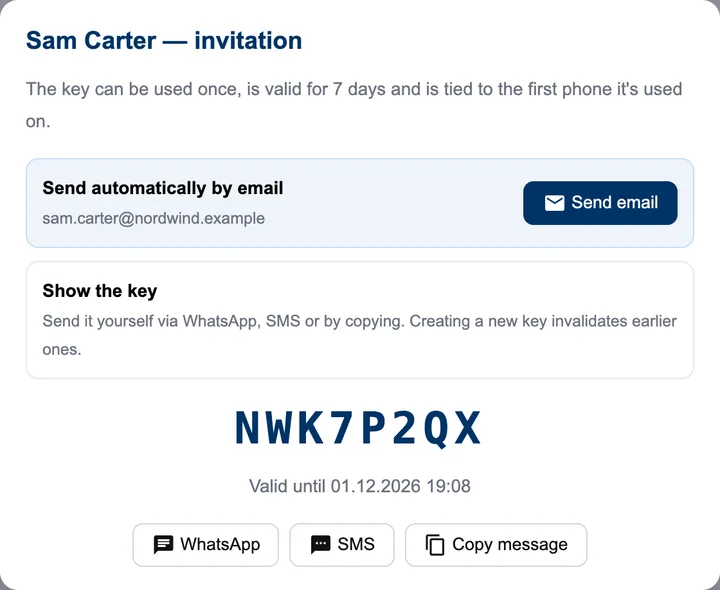
Send invitations
Invitations go out by email; you can also send them by WhatsApp, SMS or a copied link. An invitation is valid for 7 days and is bound to a single phone.
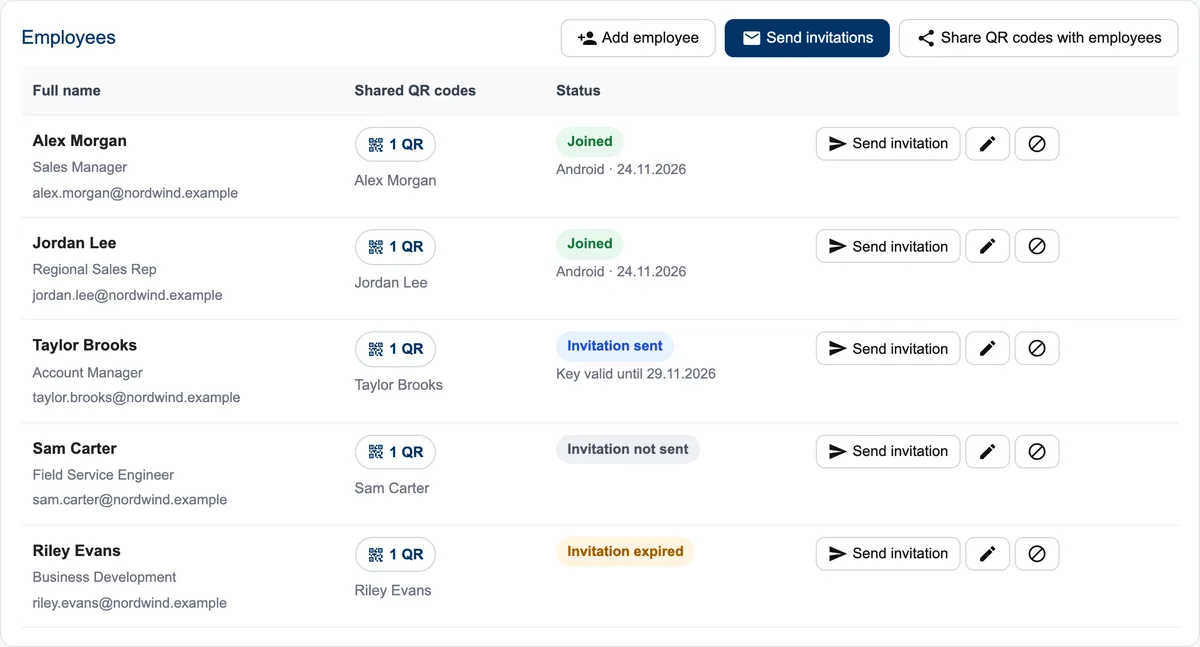
Employees see them in the app
The employee taps the link, the QRCodeG app opens and the QR codes appear under “From my company”. No account needed. In the panel you see who has joined and whose invitation is pending or has expired.
Who is it for?
For every team that shares QR codes with customers face to face.
Sales teams
Business card and the latest product catalog (PDF) always on the phone during customer visits.
Field and service staff
User manuals, service forms or company details scanned right at the customer’s site.
Store and branch employees
Product catalog, campaign page or Google review QR at the counter, on the shelf, at the door.
Trade show and event teams
Everyone at the booth shows the same up-to-date business card, catalog and company QR codes.
Real estate and insurance agents
Business card, listings or product page; the customer scans and saves you to their contacts.
Restaurant and hotel chains
Menu and Google review QR codes identical and up to date for staff in every branch.
Why team QR code sharing?
No account needed
Employees don’t create an email login or password. The invitation link is single-use and bound to one phone only.
Always up to date
When you change a QR code’s content, colors or logo in the panel, the employee’s phone shows the updated version.
Revoke access
Turn off a departing employee’s access in one click and the QR codes disappear from their phone. The QR code itself keeps working, so printed business cards aren’t affected.
Business card showcase
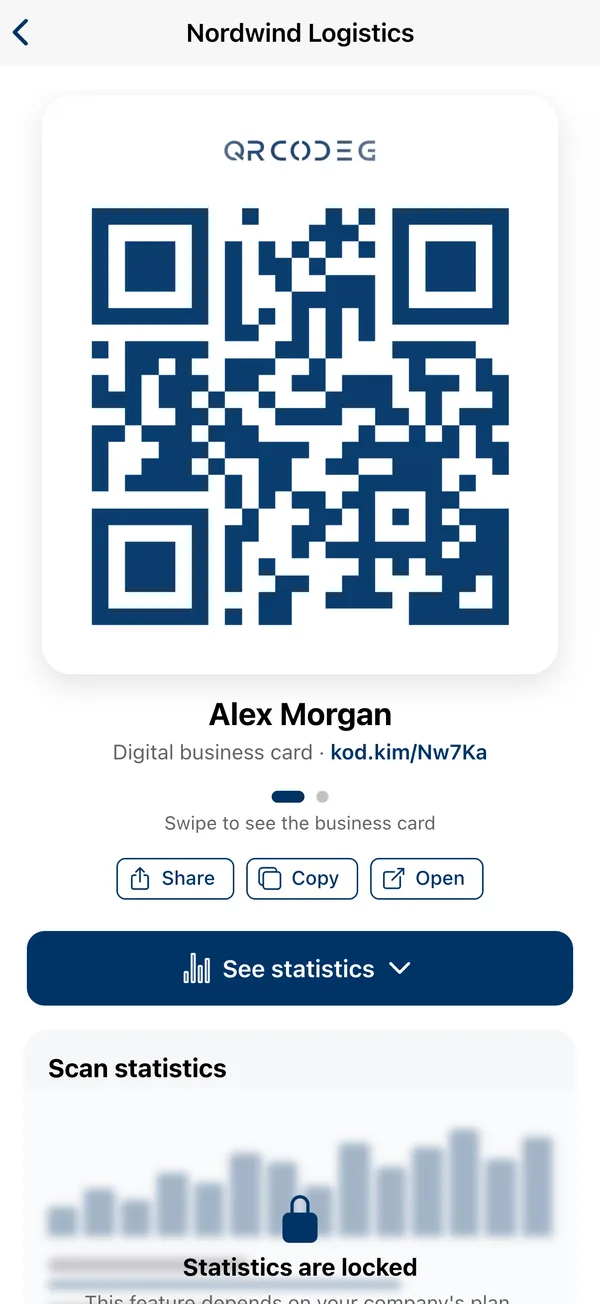
Employees show the large QR screen to a customer and swipe to reveal their digital business card in your company colors.
One-tap sharing
Copy the short link, send it by WhatsApp, email or SMS, or open the page.
Scan statistics
On the Pro plan, employees see the scan statistics of shared QR codes in the app: date, country, city and device.
You stay in control
You hand QR codes to your employees, but management stays in your panel.
Single-use invitations
The link is valid for 7 days; once bound to a phone, nobody else can use it.
One phone per person
Even if an invitation is forwarded, the QR codes only show on the phone it was bound to.
Revoke and restore
Turn off a departing employee’s access in one click; restore it if needed.
Printed QR codes unaffected
Revoking access doesn’t turn off the QR code; QR codes on business cards and brochures keep working.
Basic and Pro
You start team sharing on the Basic plan. Upgrade to Pro for more QR codes and statistics.
| BasicCurrently free | ProContact us | |
|---|---|---|
| QR codes per employee | 1 (business card included) | As many as you like |
| Create employees from business cards in bulk | ✓ | ✓ |
| Invitations: email, WhatsApp, SMS, link | ✓ | ✓ |
| Account-free joining, one phone per person | ✓ | ✓ |
| Panel changes up to date on phones | ✓ | ✓ |
| Business card showcase (QR + digital card) | ✓ | ✓ |
| Revoke and restore access | ✓ | ✓ |
| QRCodeG logo in the app | Large, above the QR | Small, below the QR |
| Scan statistics (date, country, city, device, operating system) | — | ✓ |
For your own QR codes too
No company setup needed: sign in to the QRCodeG app with your Qrcodeg account and see the QR codes you created in the web panel, with their scan statistics (last 7, 30 and 90 days), on your phone. The app is also a secure QR code scanner.
Explore the mobile app →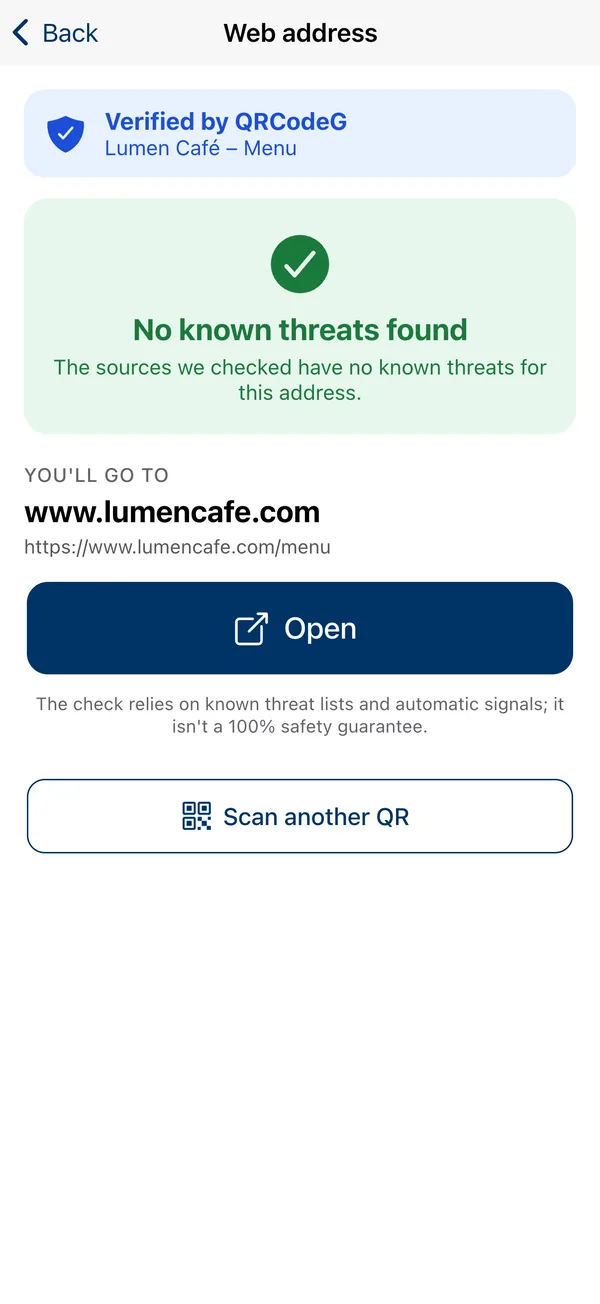
Frequently asked questions
Do employees need to create an account?
No. The employee taps the invitation link and the QRCodeG app opens. No email, password or sign-up is needed.
Which phones does it work on?
The QRCodeG app is available for iPhone on the App Store and for Android on Google Play.
How long is an invitation link valid?
An invitation is valid for 7 days and can be used once; after it is bound to a phone it can’t be used on another. If it expires, you can send a new one from the panel.
What happens when an employee leaves?
You revoke their access in the panel and the shared QR codes disappear from their phone. The QR code itself isn’t turned off, so printed business cards and materials keep working. You can restore access at any time.
What is the difference between Basic and Pro?
On Basic each employee can see 1 QR code (including their business card) and scan statistics are off. On Pro you share as many QR codes as you like and employees see scan statistics in the app. Basic is currently free; contact us about Pro.
Which QR codes can I share?
The QR codes in your Qrcodeg panel: digital business cards, PDF catalogs, website links, company profiles, menus and other types.
Do employees see changes to a QR code?
Yes. When you change the content, colors or logo in the panel, the employee’s app shows the updated version.
Can employees change a QR code?
No. Only the company manages the QR codes; employees view them, let customers scan them and share their links in the app. Content, color and logo changes are made in the panel.
What if an employee changes phones?
Send a new invitation from the panel. Once it is used on the new phone, access on the old phone closes automatically.
Can I add an employee who has no business card?
Yes. A name is all you need; job title, phone and email are optional. Without an email, send the invitation by WhatsApp, SMS or a copied link.
What if the employee has their own Qrcodeg account?
They can sign in to the app with it and see their own QR codes too. The QR codes shared by the company stay separate under “From my company”.
Send your company’s QR codes to your employees today
Open the Business page in the panel, create your employees and send the invitations. The Basic plan is currently free.
The Basic plan is currently free · App for iPhone and Android